


Creating interactive and navigable elements on a website is fundamental in web design, and one of the key tools for this is the HTML link tag. This guide will explain how to use link tags effectively to connect various content on your website.
Link Blocks Explained: Clickable Containers
Similar to a div, a link block is a container that can hold various content types, such as text, images, or entire sections. The key difference is its ability to create clickable links.
- Select the area where you want the button and add the link tag
- Style your link block to resemble a button by choosing colors, margins, and font settings from the design panel

Setting Up Internal & External Links
For internal links (linking within your site):
- Select the link block and open the settings panel
- Choose the 'Page' option and select an existing page from your project’s dropdown list
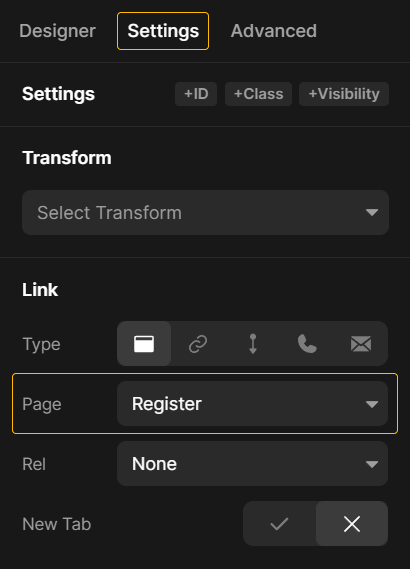
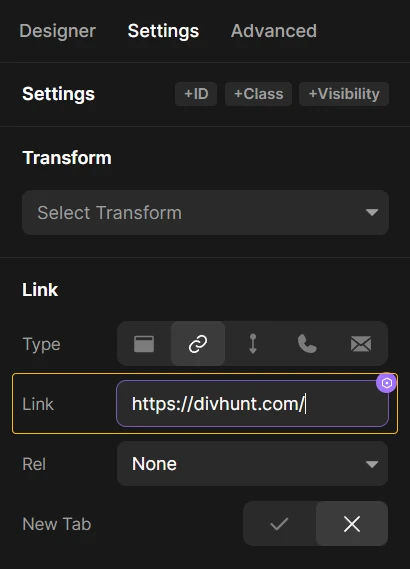
For external links (linking to other websites):
- Simply paste the desired external URL into the link input field in the settings panel.
Anchor Links For In-Page Navigation
To direct users to specific sections on the same page:
- Select the section you want the linked scrolling to target and assign it an ID
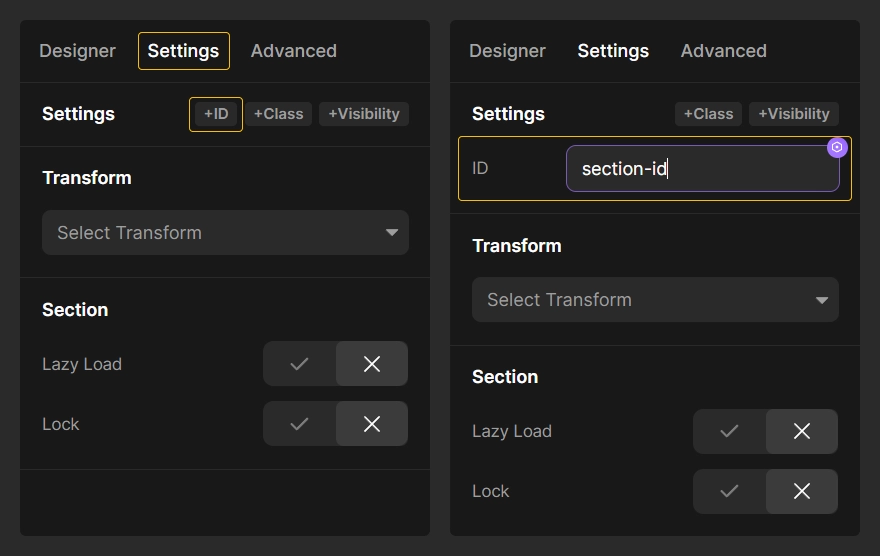
- Choose the text or element you wish to turn into a link and select it
- In the settings panel, opt for the 'Anchor' option
- Input the ID of the section you're linking to (the ID previously assigned to your target section)
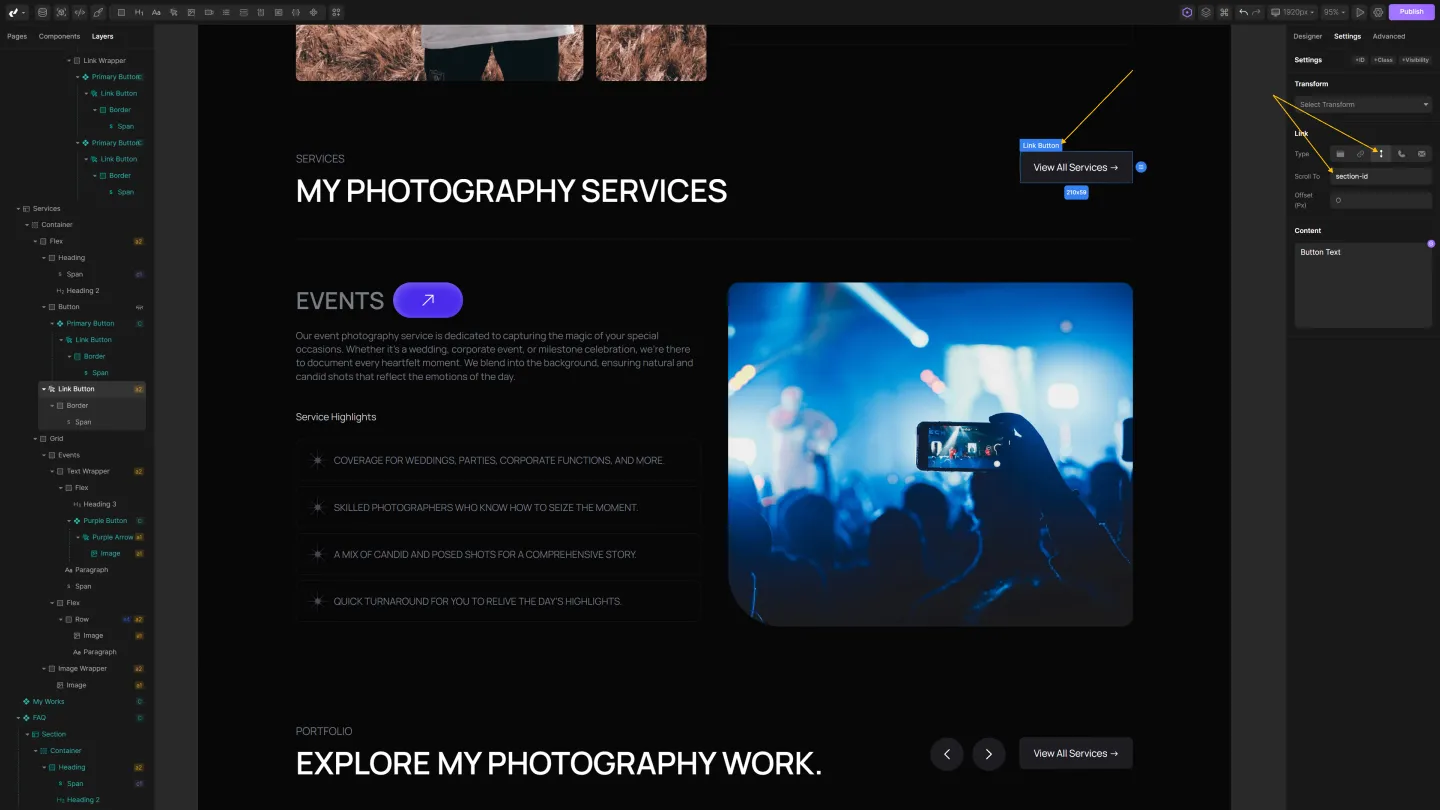
Set A Scroll Offset For Anchor Links
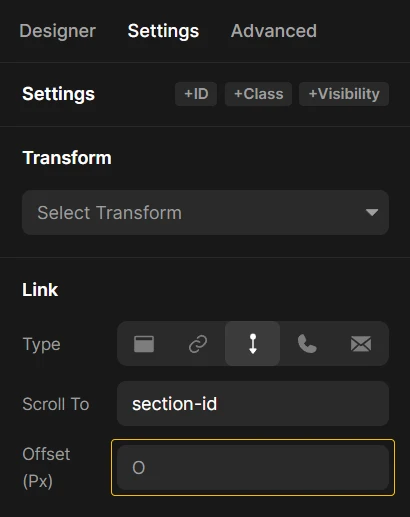
In the link settings, specify the offset in pixels to control how far above the section the scroll stops, preventing the default behavior where the top of the section aligns with the top of the screen.
Add Phone & Email Links To Your Page
- In the settings panel, select either the 'Phone' or 'Email' option.
- Input the phone number or email address where prompted.
Improve Link Security With Rel Attributes
In the settings panel, you'll find options like 'no-follow', 'no-opener', and 'no-referrer' under the 'Rel' field. These can improve the privacy and security of your external links.
- no-follow: Prevents search engines from following the link
- no-opener: Enhances security by preventing the new page from accessing the original page
- no-referrer: Stops the browser from sending the referring URL to the new page
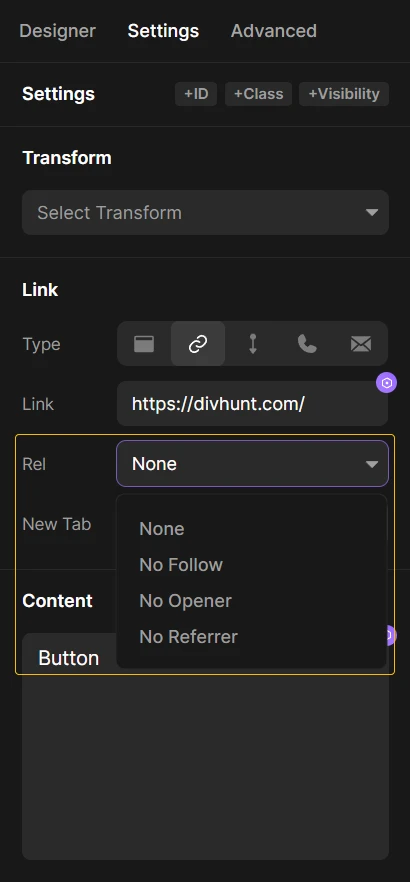
Table of content
Create your website visually – fast and easy.
Build a stunning website with ease using our visual builder. No experience needed – just drag, drop, and launch your site today.
Build and publish websites for free
Build and host your site with a custom domain for free. Upgrade anytime for expanded limits.
Build for free

Divhunt - Build websites. Faster. Better. Visually.


©2026 Divhunt GmbH. All Rights Reserved.

Built in Divhunt
We use cookies.
By clicking “Accept All”, you agree to the storing of cookies on your device to enhance site navigation, analyze site usage, and assist in our marketing efforts. View ourCookie Policyfor more information.
Optahunt
Preferences
Manage your cookie preferences.
Essentials
Always Active
These are required for the website to work, like remembering your privacy settings, keeping you logged in, or enabling secure payments.
Performance
These help us understand how people use our site (like which pages are most popular) so we can make improvements.
Personalization
These allow the site to remember your preferences (such as language or region) and provide enhanced features.
Advertising & Targeting
These are used to deliver ads more relevant to you, limit how often you see them, and measure campaign performance.
Save my preferences
You can always change these settings later via ourCookie Policy pagepage, or via the cookie widget placed at the bottom left of the page.