




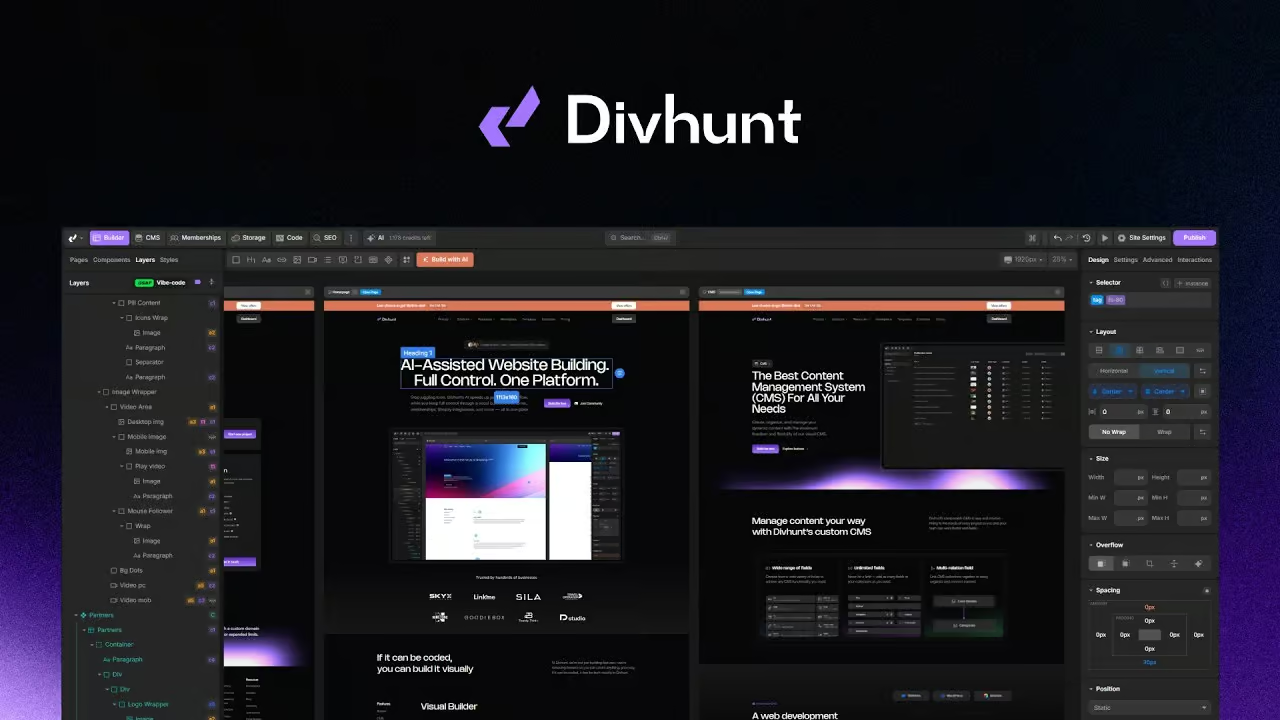

The container tag is a fundamental element in front-end development used to structure and organize webpage content. It acts as an invisible box around elements, ensuring content doesn't stretch too wide across the page.
How to use Container tag
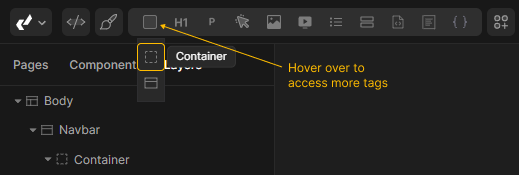
- Select the 'container' element from the dropdown menu and insert it into your section.'
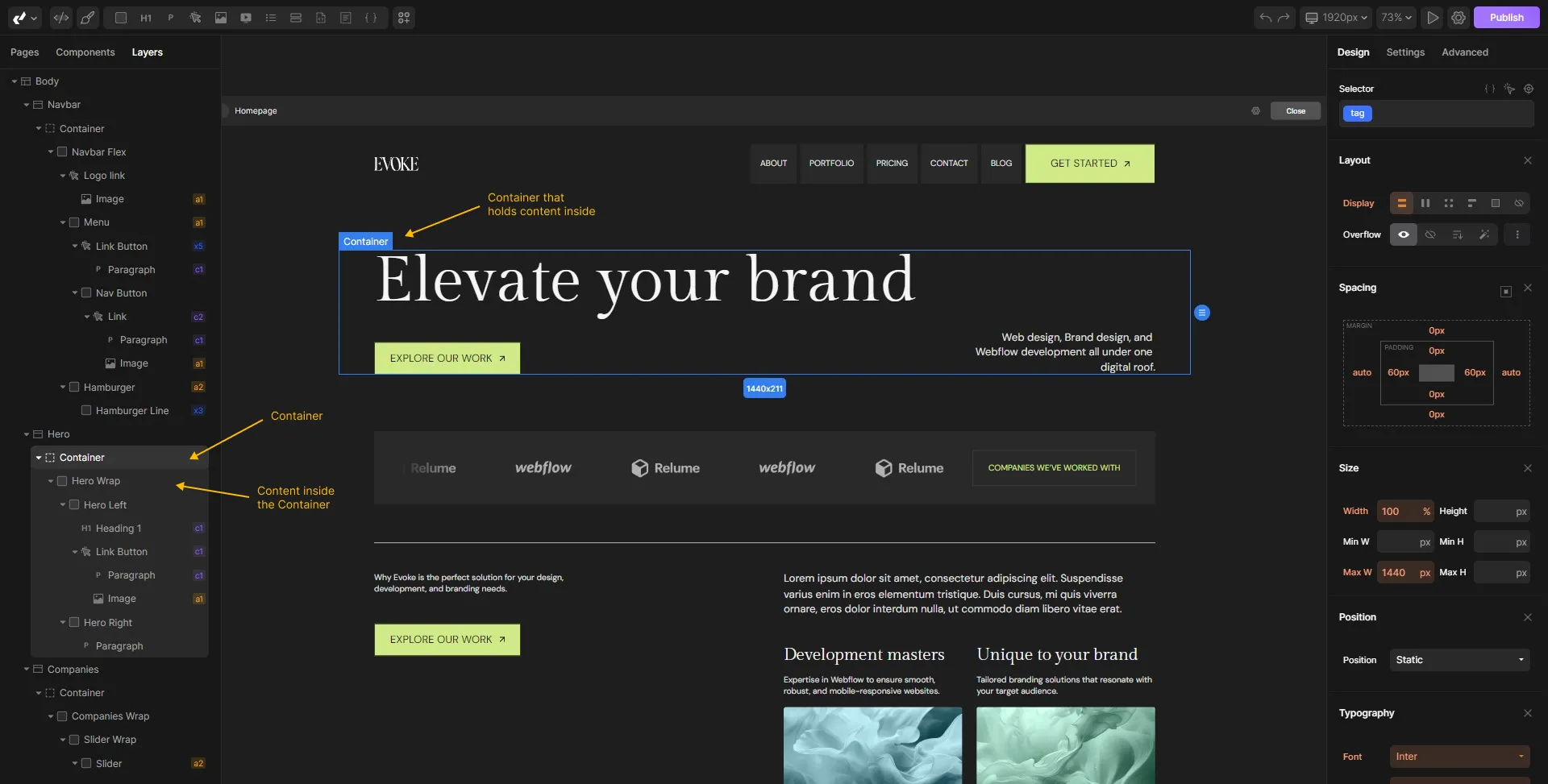
- Move your content into the predefined container. The content will center automatically, without additional styling
Reusing the container
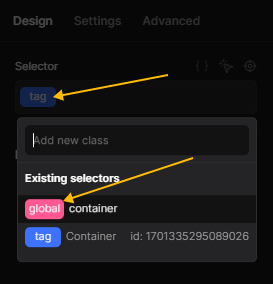
Global method
Select the Global Container tag and edit the properties. By doing this, any new 'Container' tag added will automatically inherit these styles, providing consistency across your website.
Class method for container variations
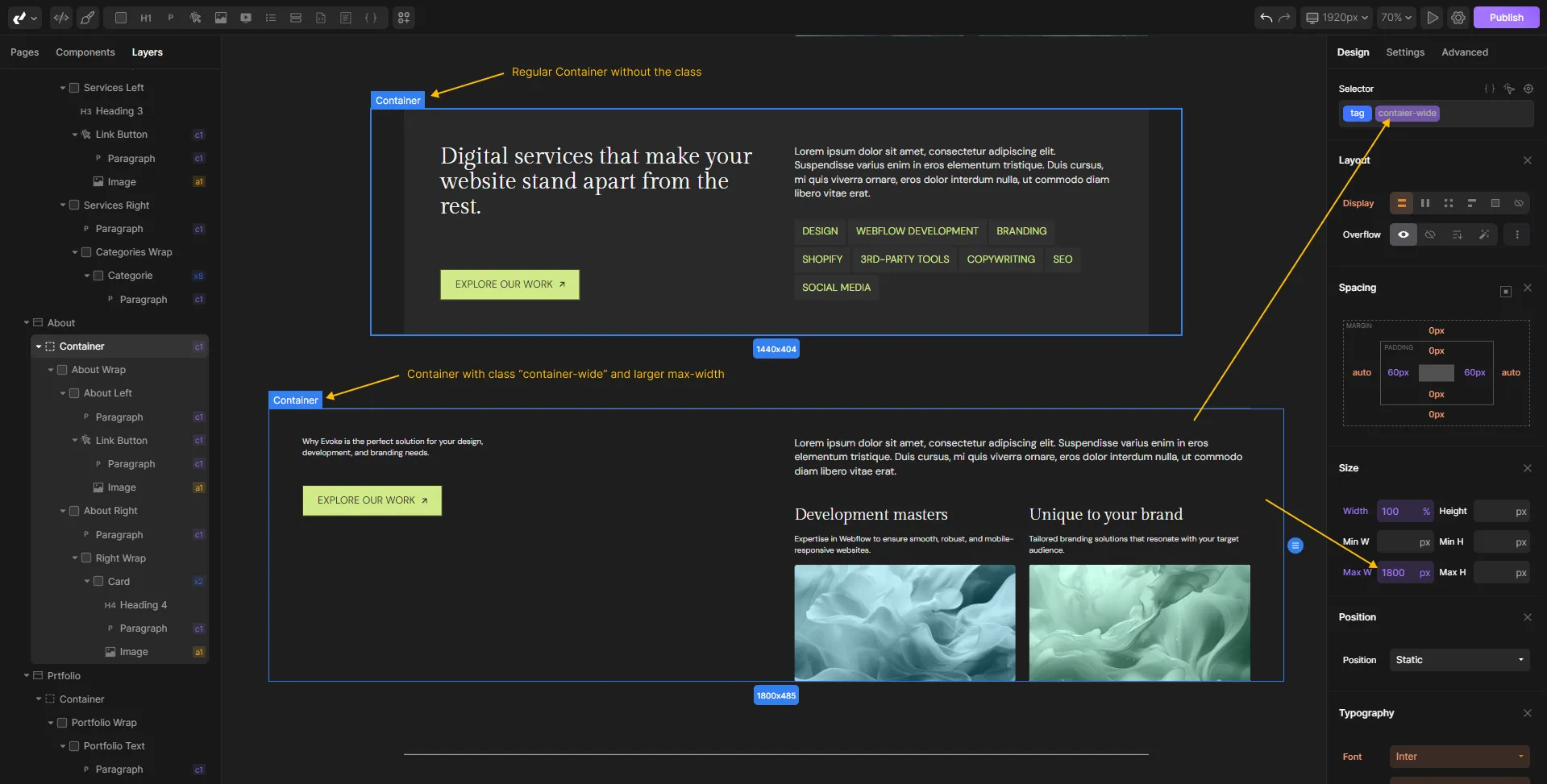
If different container styles are needed (like varying widths or padding), create additional classes (e.g., .container-wide). Apply these classes to 'Containers' tags where specific styling is required.
Best container practices
To ensure the best organization of webpage content and simplify your workflow, it's essential to style the Container tag properly from the start.
The Predefined Container in Divhunt already has these settings in place. Just change the Container's Max Width to fit your design requirements.
- Max width: Set a maximum width (like 1440 pixels) to prevent your content from stretching too wide on large screens. This keeps your website looking neat and readable.
- Width 100%: Make sure the width is set to 100% so the container stretches to the full width of its parent element, using up the available space efficiently.
- Padding on sides: Add padding (such as 20 pixels) on the left and right sides of the container. This stops your content from touching the edges of the screen, especially on smaller devices, making it look cleaner and easier to read.
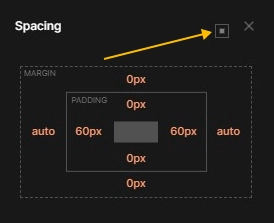
- Margin '0 Auto' for centering: Use 'margin: 0 auto;' to center your container within the parent element. This places it in the middle of the page, giving your website a balanced, professional look.