Last chance to get lifetime deal





Custom code organization that feels like your favorite editor
Manage JS and CSS files with a structure developers love, combining folders and clean organization.


From developers, for developers
While we aim to make everything possible without code, we understand the importance of custom coding for developers. Our system ensures you’ll never face limits if you know how to code.

Divhunt JavaScript ecosystem
Go beyond basic events like click and page load. With Divhunt, write global functions that work anywhere, even to modify CMS output. And much more.
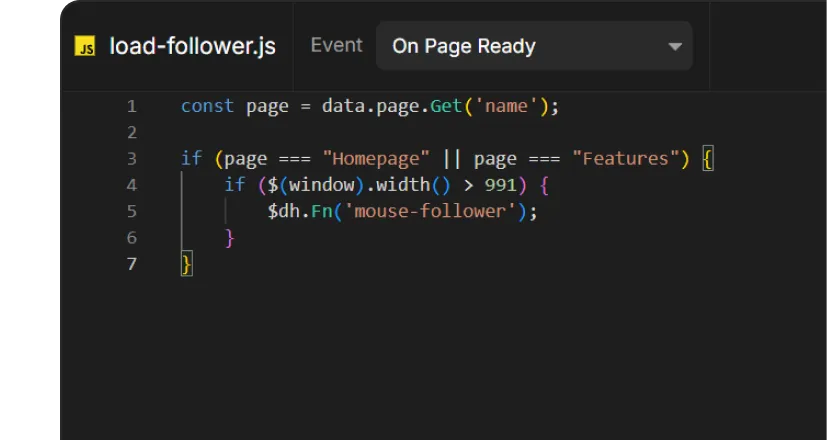


Built in JavaScript events
No need to manually write triggers like page load or form submit. Simply write only the code of action and select the event trigger from a dropdown.


Full screen coding editor
Enjoy a coding experience that feels natural and professional, just like working in VS Code, but directly in Divhunt.



JavaScript file types
Different types, different purposes
We offer a clear way to organize your code, with each file serving a purpose. Learning to use and combine these types will improve your organization of your code.
Default
A standard JavaScript file with built-in event triggers, ideal for tasks like click events, form submissions, and similar functionality.
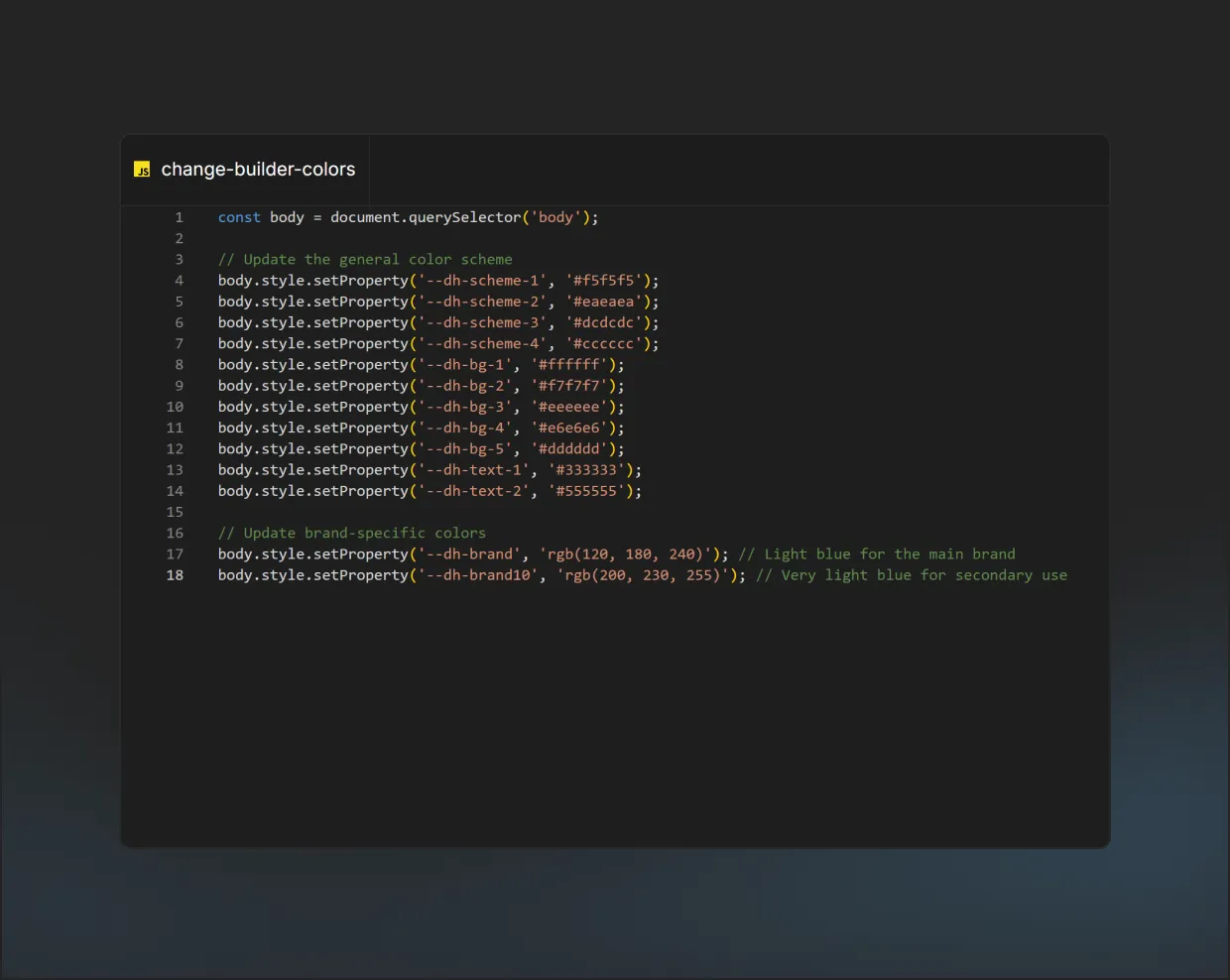
Plugin
A JavaScript file that runs in both the builder and on live website. Plugins let you modify functionality, such as customizing the Divhunt builder’s colors to match your brand.
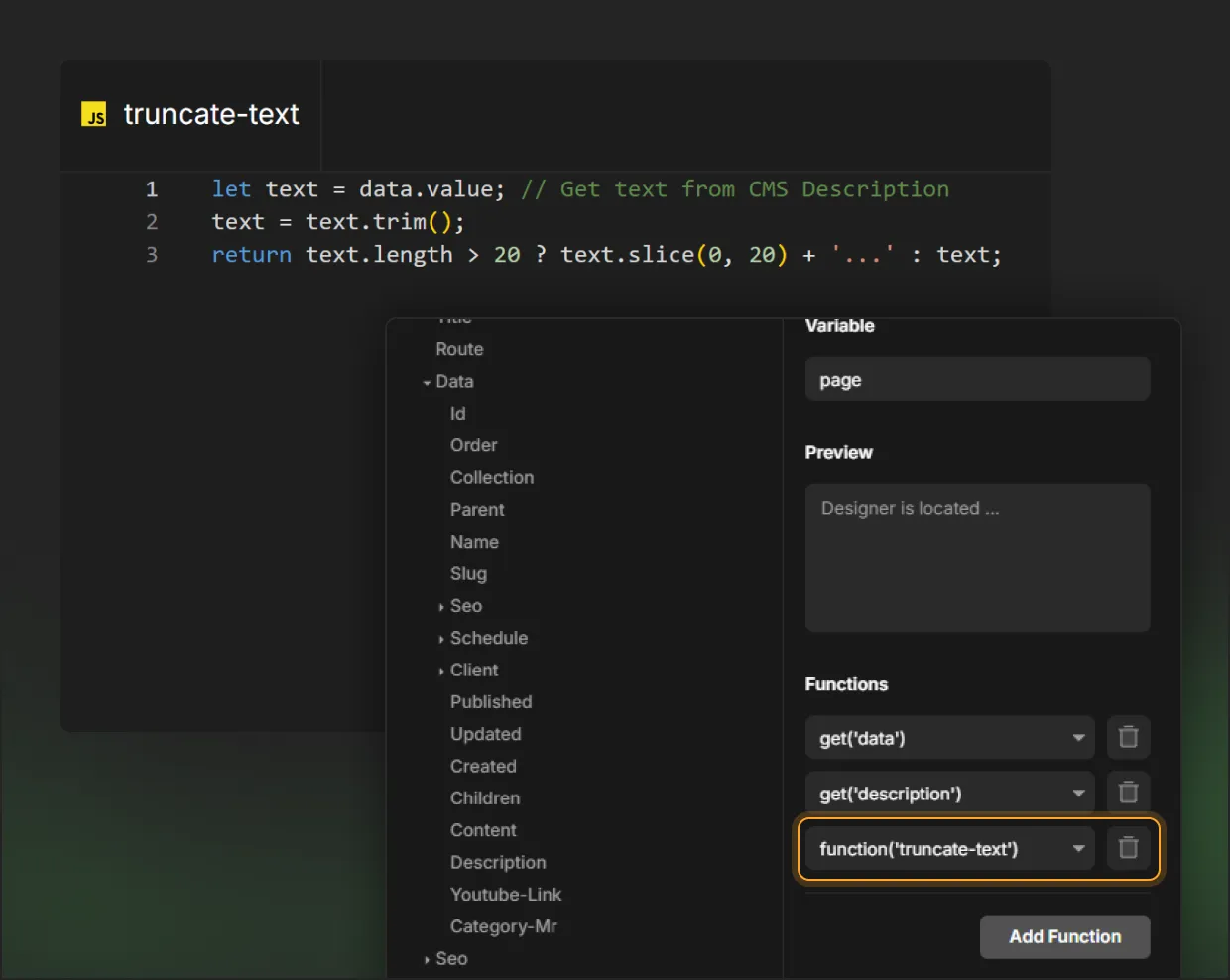
Function
Build reusable JavaScript functions for better code management and flexibility. These functions can be used in other files or within Divhunt’s variable system to fetch and modify CMS or REST API data, instantly reflecting changes in the builder.
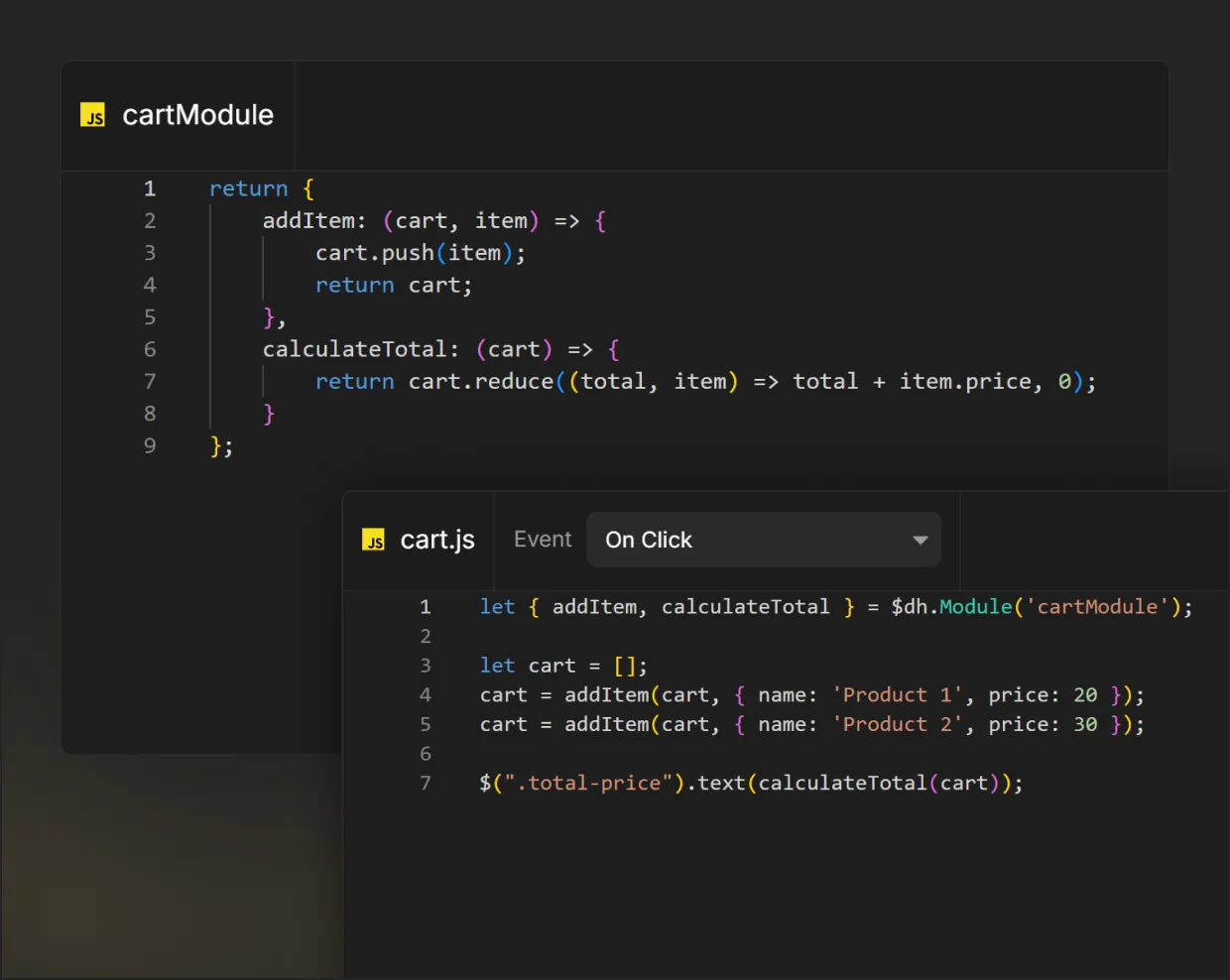
Module
In case you need to create multiple functions that you will reuse in other files, you can write several functions under the same module to reduce the number of files and achieve better organization.
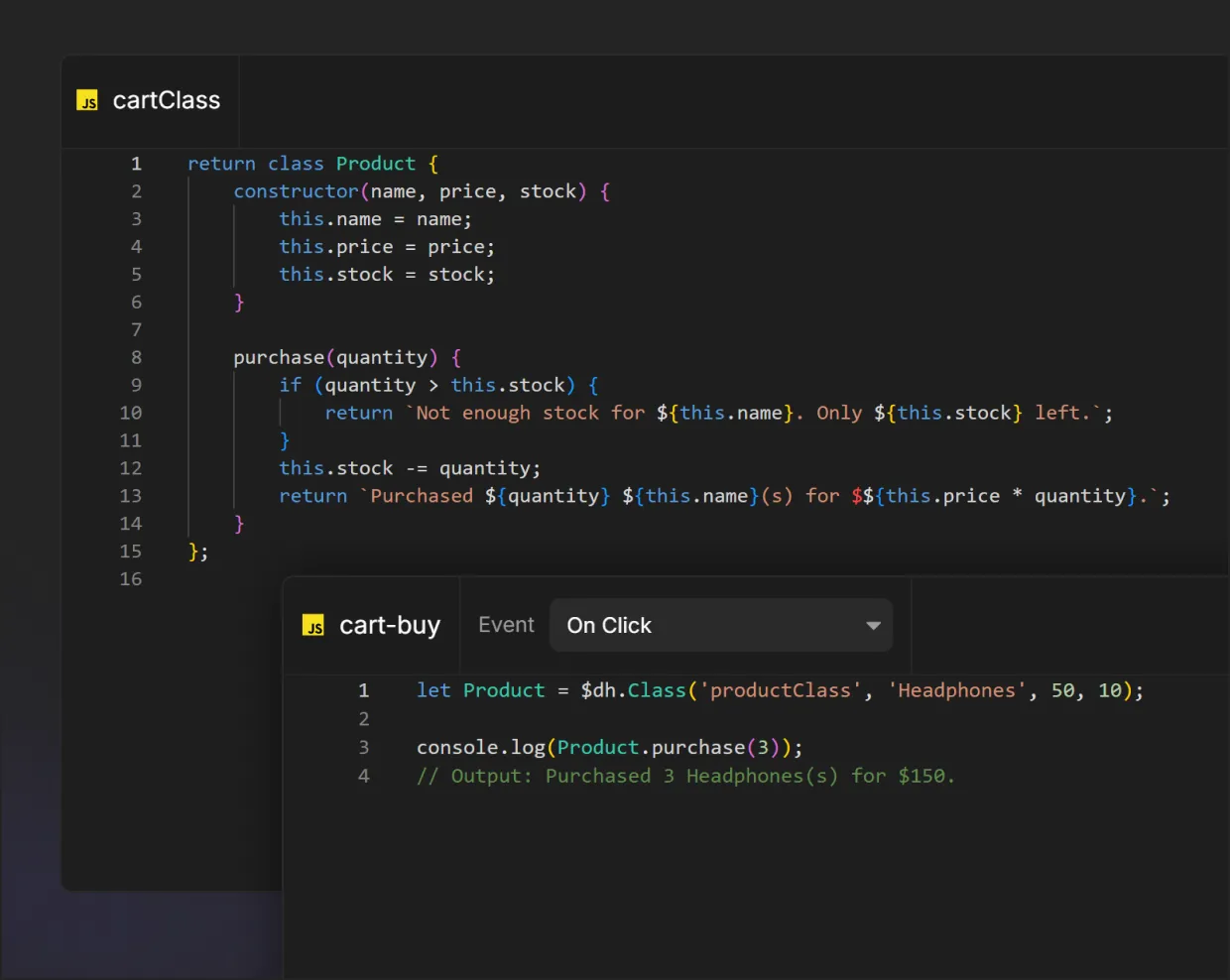
Class
Classes help you group related functions and logic in one place. Use them to handle tasks that require reusable methods and structured parameters, keeping your code clean and organized for complex projects.
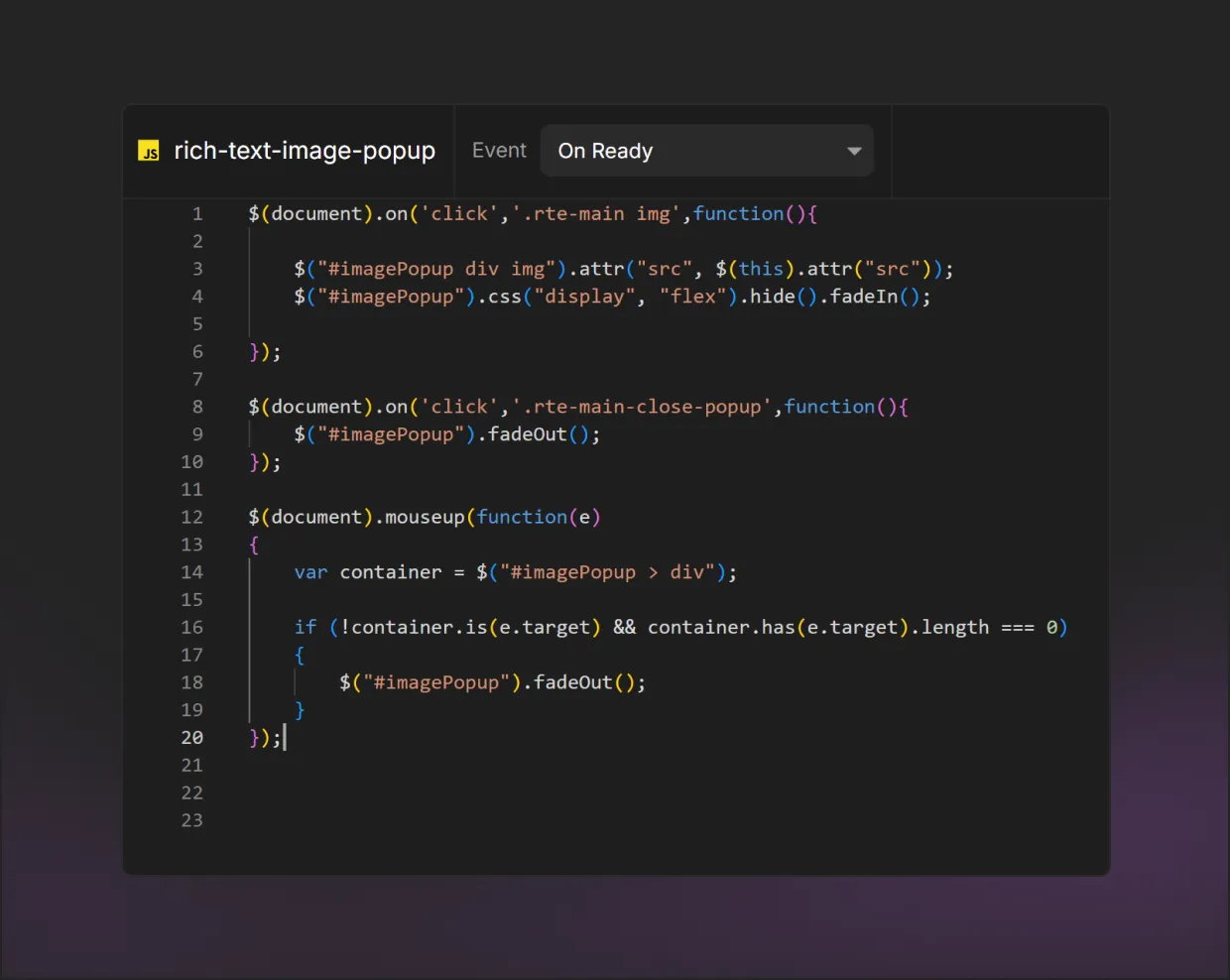
Events
Trigger code just when you need it
With Divhunt’s custom JavaScript framework and single-page application system, you’ll explore a new, innovative way of working with JavaScript. Instead of manually writing triggers like page load, form submit or page ready, simply write your action and select the event from a dropdown.
Page - Ready
Executes every time a visitor changes a page and the DOM is fully ready.
Page - Load
Executes every time a visitor changes a page, waiting for the full page to load, including the CMS.
Page - Preload
Executes as soon as a page starts loading without waiting for it to be ready.
Page - Unload
Executes when a visitor navigates away from a page.
Website - Preload
Executes when a visitor starts opening the website for the first time.
Website - Ready
Executes once when a visitor opens the website and the DOM is fully ready.
Website - Load
Executes once when a visitor opens the website and the page is fully loaded, including the CMS.
Window - Scroll
Executes while the visitor is scrolling through the website and provides the current scroll percentage.
Window - Resize
Executes whenever the visitor resizes the browser window.
Window - Blur
Executes when the visitor switches to another browser tab or leaves the current tab.
Window - Focus
Executes when the visitor returns to the website after inactivity.
Forms - Submit
Executes every time a form is submitted, regardless of success or failure, and includes data to identify the form.
Forms - Successful submit
Executes when a form is successfully submitted, with built-in data to identify the form.
Forms - Failed submit
Executes when a form submission fails, with built-in data to identify the form.
Element - Click
Executes when a specific element is clicked.
Element - Double click
Executes when a specific element is double-clicked.
Element - Hover
Executes when a specific element is hovered over.
Element - Input
Executes during live interaction with form fields such as text inputs or text areas.
Element - Input change
Executes when the value of a form field changes.

All features
Build visually with powerful coding options when needed
Whether you're a developer or designer, create modern websites with our flexible builder—perfect for any project size.

Builder
Bring your ideas to life with our visual website builder. Drag and drop with ease, or dive into coding when needed.

CMS
Create, organize, and manage your dynamic content with the maximum freedom and flexibility of our visual CMS.

SEO
Divhunt delivers ultra-fast & structured sites that are good for ranking by default, while offering complete control for customization.

Plugins
Divhunt offers an open platform for creating plugins to upgrade features, add new capabilities, and simplify building better sites.

REST API
Easily link to any REST API endpoint with instant preview and expand your site’s functionality smoother than ever before.

Localization
Localize everything from static pages and CMS content to URLs and metadata for free (up to 15 languages).

Interactions
Visually create animations and interactions with a simple, intuitive timeline. Build smooth, engaging experiences without code.

Custom Files
Manage JS and CSS files with a structure developers love, combining folders and clean organization.
Build and publish websites for free
Build and host your site with a custom domain for free. Upgrade anytime for expanded limits.
Build for free

Divhunt - Build websites. Faster. Better. Visually.


©2026 Divhunt GmbH. All Rights Reserved.

Built in Divhunt
We use cookies.
By clicking “Accept All”, you agree to the storing of cookies on your device to enhance site navigation, analyze site usage, and assist in our marketing efforts. View ourCookie Policyfor more information.
Optahunt
Preferences
Manage your cookie preferences.
Essentials
Always Active
These are required for the website to work, like remembering your privacy settings, keeping you logged in, or enabling secure payments.
Performance
These help us understand how people use our site (like which pages are most popular) so we can make improvements.
Personalization
These allow the site to remember your preferences (such as language or region) and provide enhanced features.
Advertising & Targeting
These are used to deliver ads more relevant to you, limit how often you see them, and measure campaign performance.
Save my preferences
You can always change these settings later via ourCookie Policy pagepage, or via the cookie widget placed at the bottom left of the page.