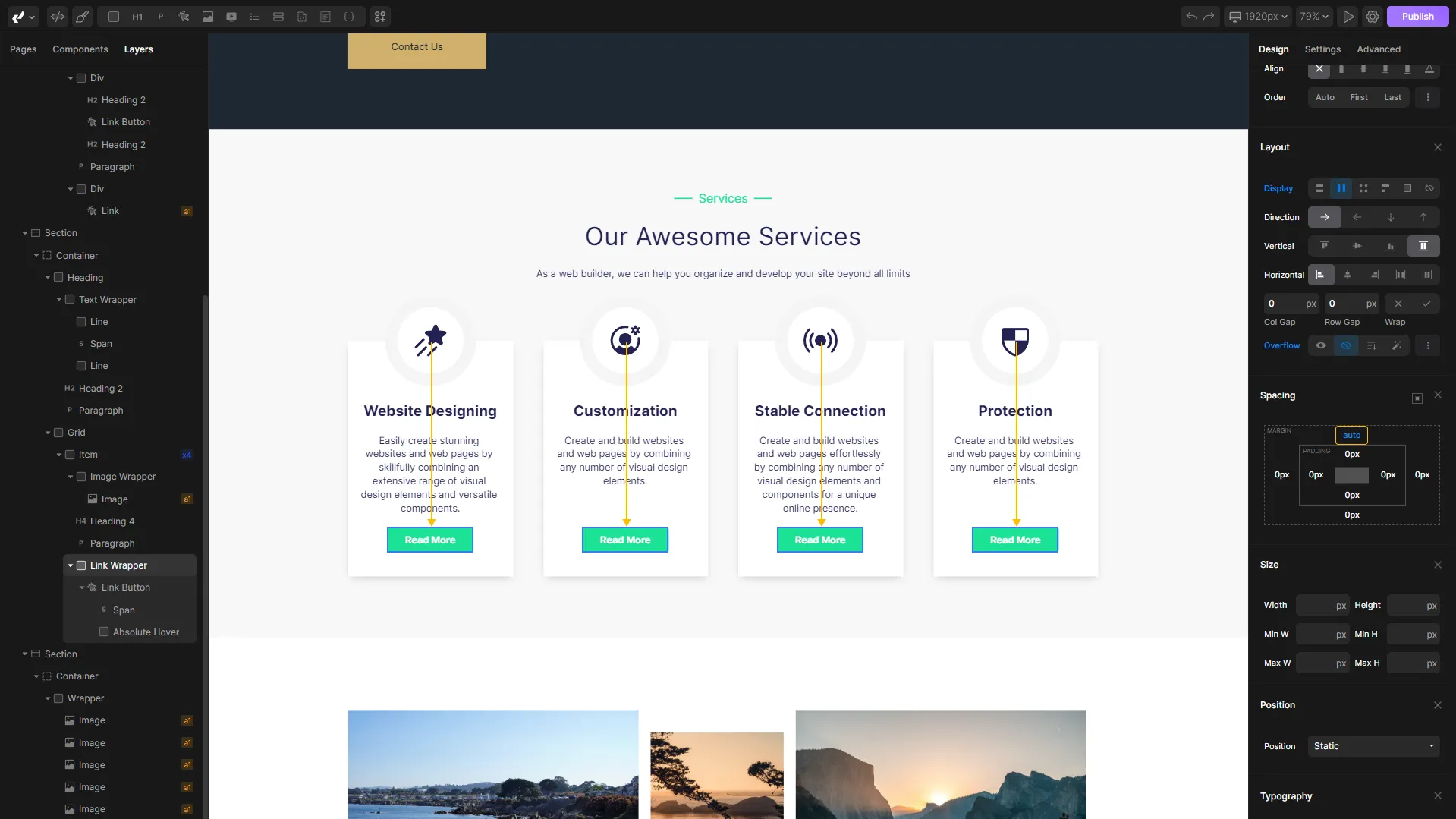







You can adjust padding & margins parameters by clicking and dragging, or input a specific value manually. There are also predefined padding options for convenience.
To adjust padding or margins quickly, hold the ALT key and drag to apply values to top and bottom or left and right simultaneously, or hold the SHIFT key and drag to apply values to all four sides at once.
Padding
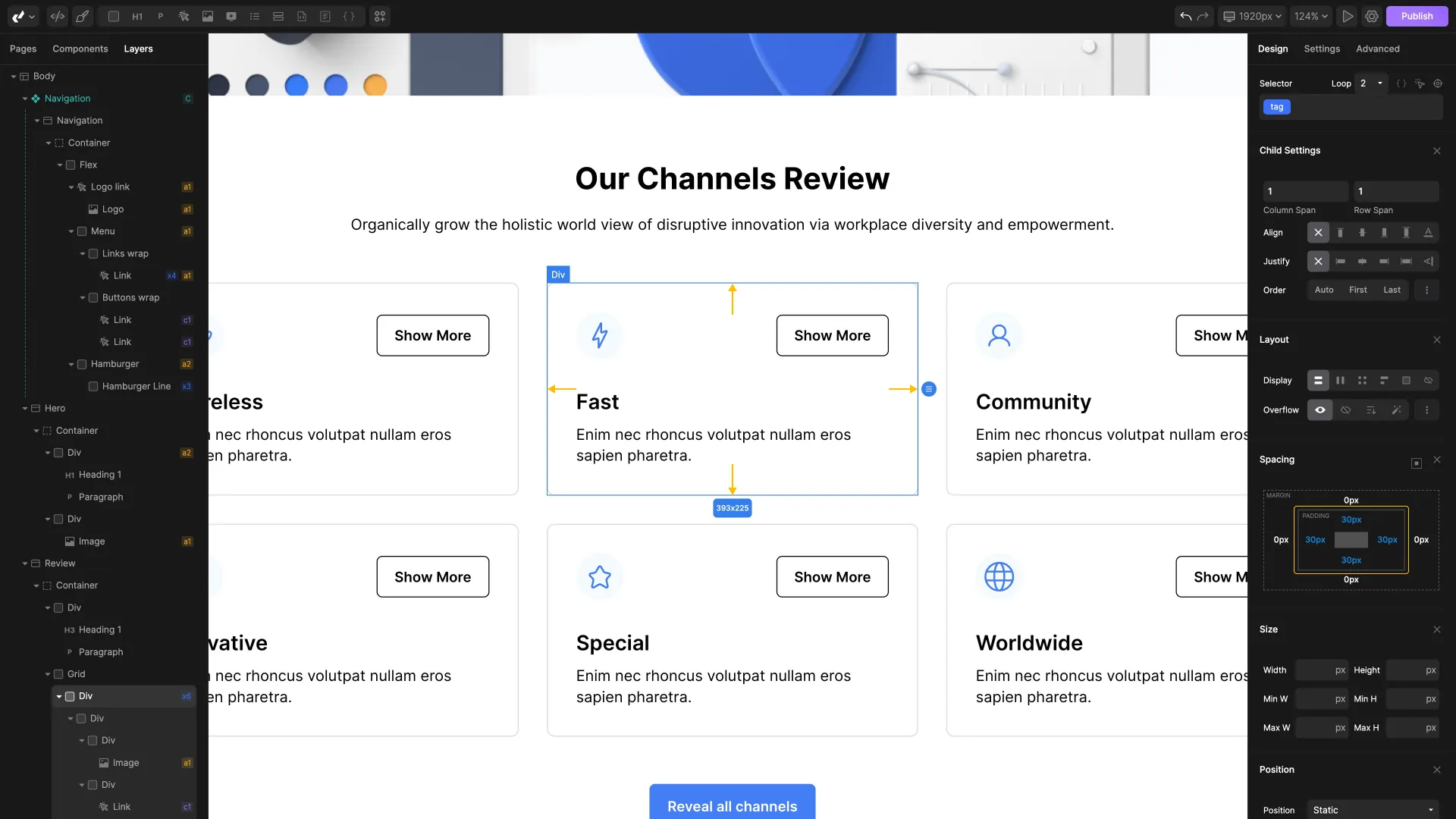
Imagine you have a card with content inside it. By default, the content stretches to fill the available space. To create some breathing room within the card, you use padding.
Margins
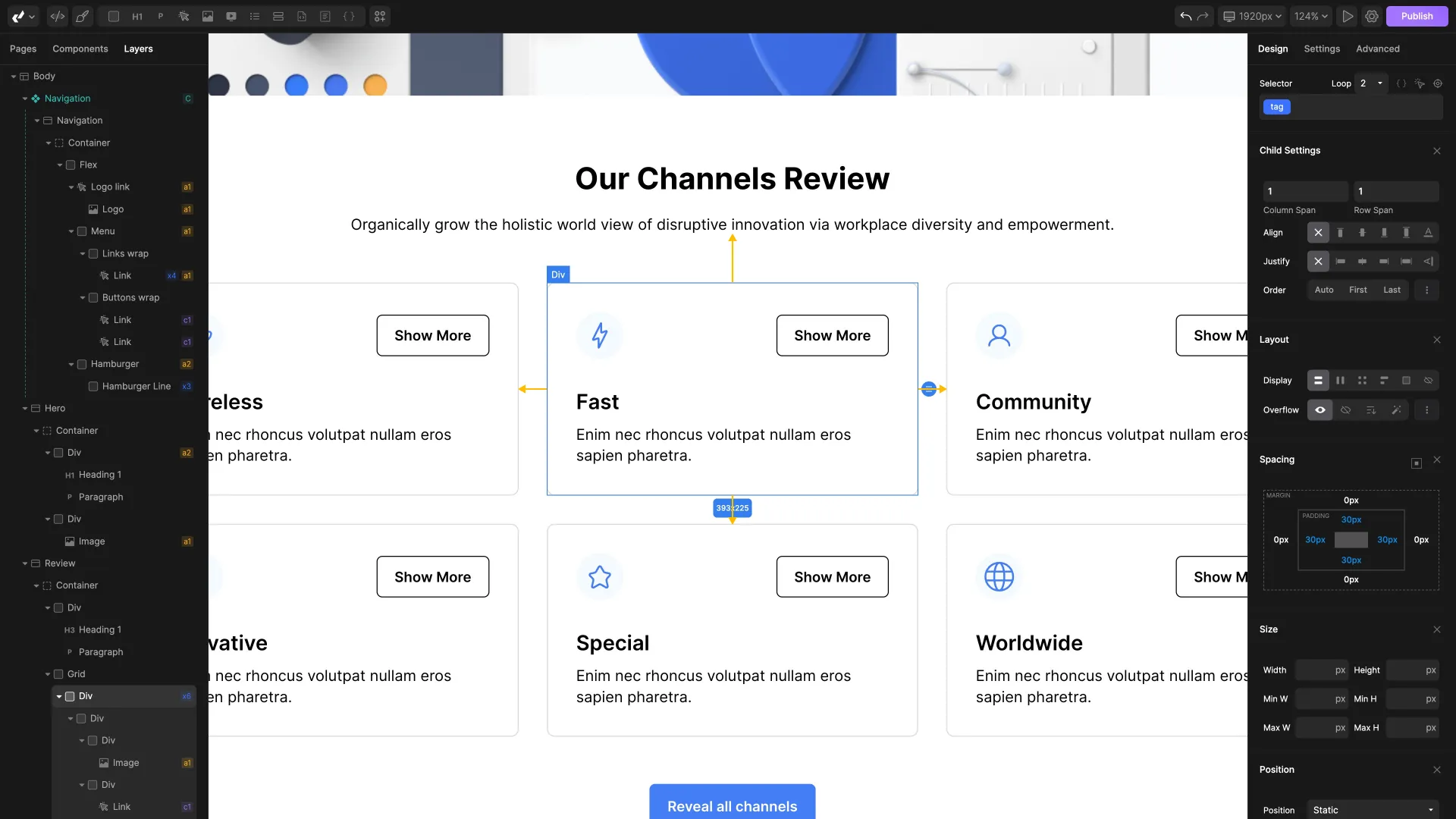
Margins, on the other hand, help you create space outside of your element, perfect for separating grouped items.
Negative margin
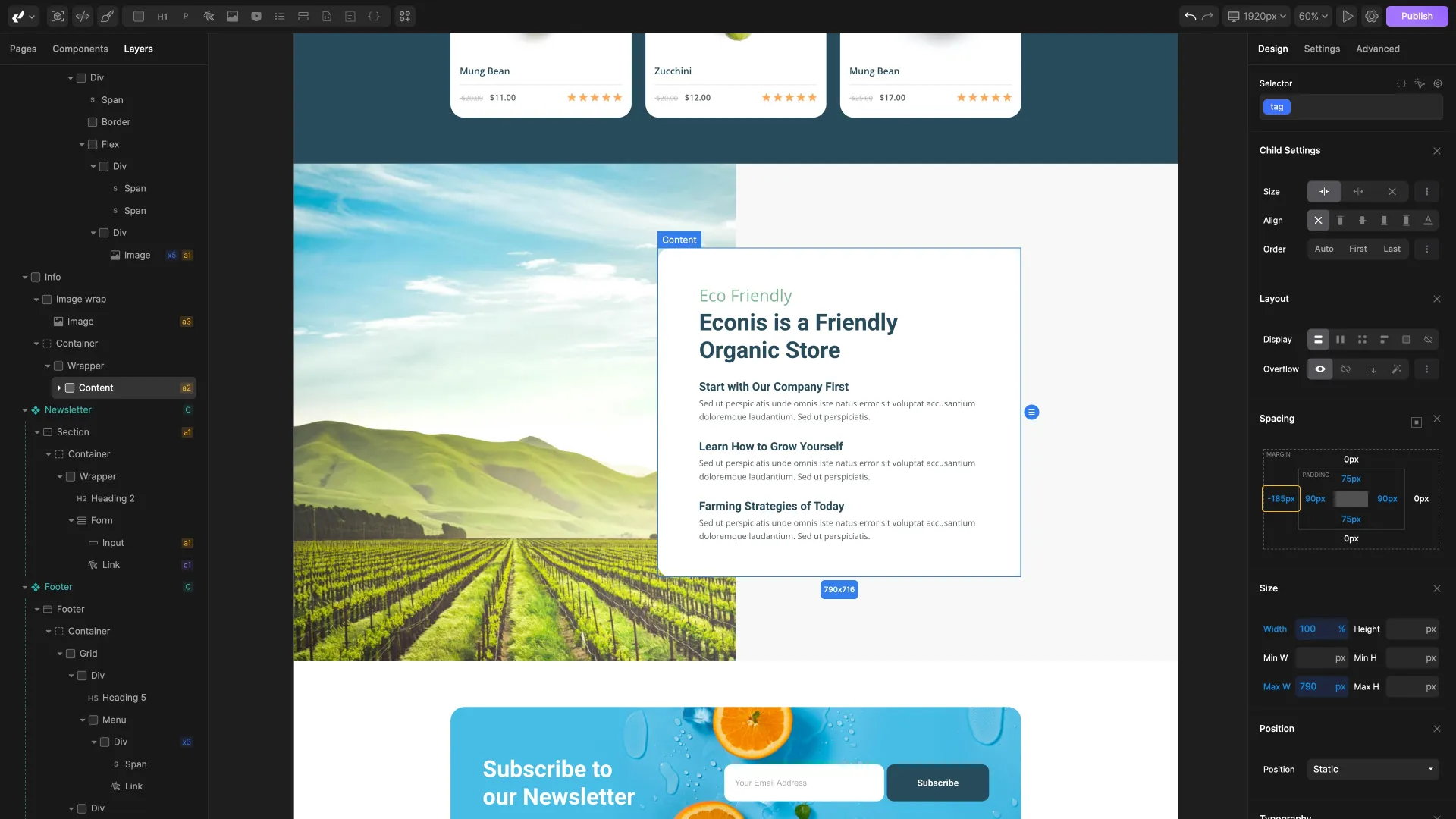
Negative margins allow for overlapping elements or pulling an element in a specific direction. It's important to use small values to avoid disrupting the layout on smaller devices.
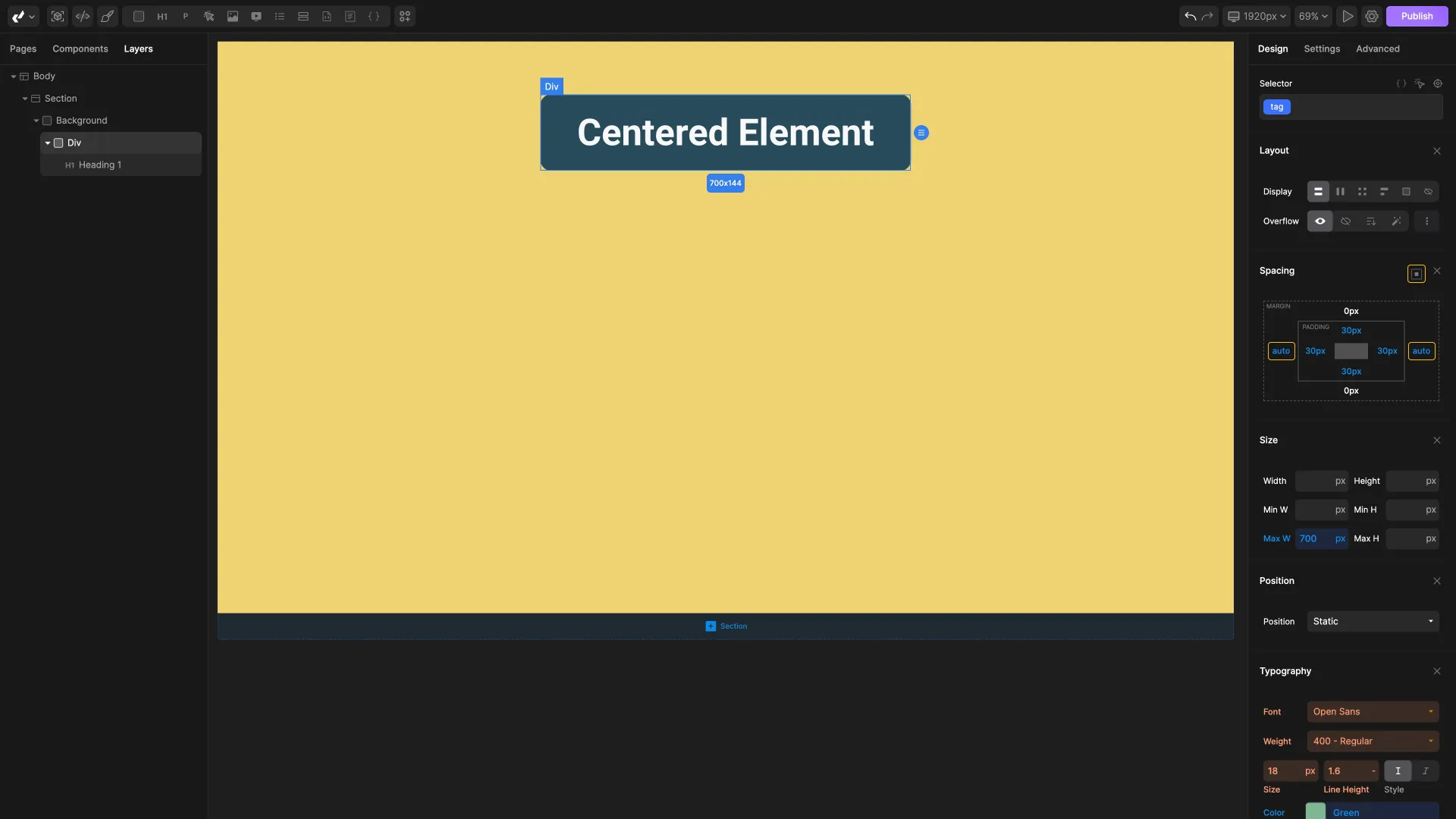
Margin auto: Centering an element
The 'margin auto' option can center an element by distributing available space evenly between the left and right margins. This requires the element to have a defined width and does not work with inline or inline-block display options.
Margin align trick
For unevenly aligned elements, like buttons with varying text lengths, applying a 'margin top auto' can align them perfectly at the bottom.