








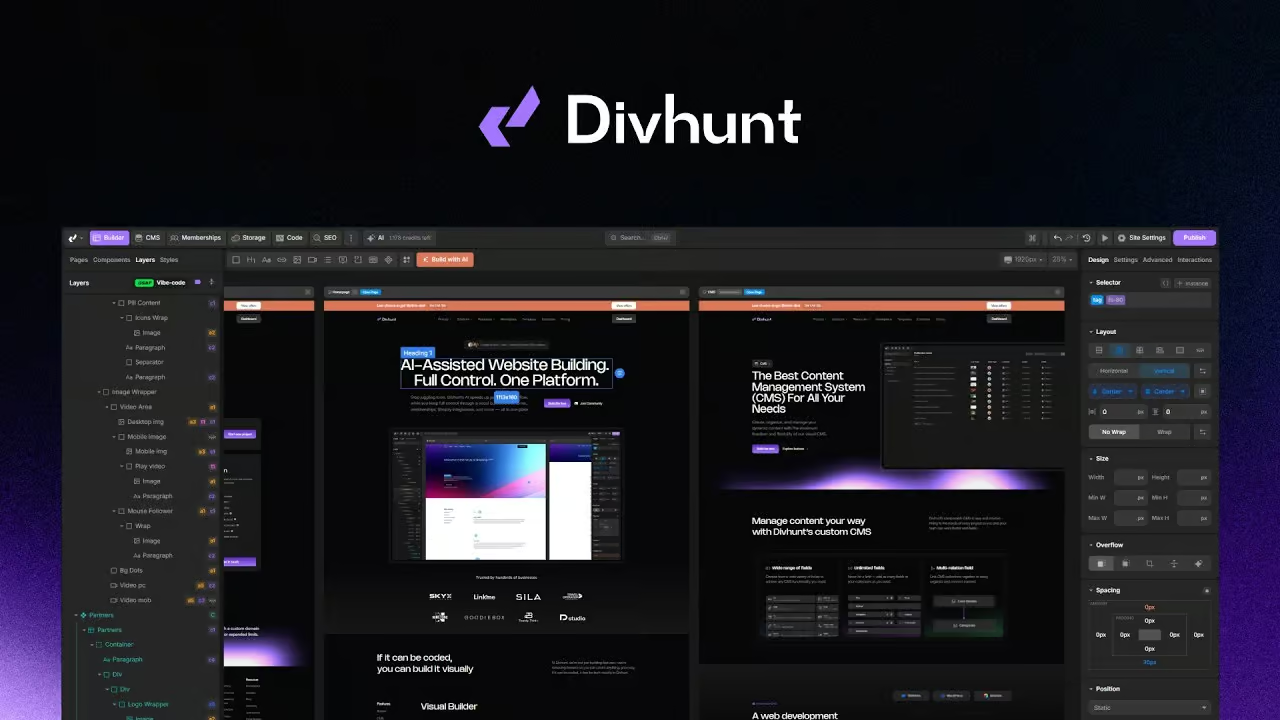

Style Tags Any Way You Like — Global, Class-Based, or Direct
Divhunt gives you full flexibility over how you apply styles to elements. You’re not locked into a single method — instead, you can choose what works best for your project: styling globally by tag, reusing custom classes, or applying direct styles to individual elements.
Global styling is great for base-level structure. If you select a tag like h2 or p and apply changes using the global selector, those styles will automatically apply across your entire site. For example, changing the font or spacing on one h2 tag updates every h2 on every page — instantly. These global styles are marked in pink and remain consistent even as you add new tags later.
But when you want more control and reusability, classes are the way to go. You can apply one or more classes to any element, define styles once, and reuse them anywhere — across tags, layouts, or even entire projects. Class styles are marked in purple, and because they act independently, you can stack multiple classes without relying on combo class logic. This makes it easy to manage shared UI elements like buttons, cards, or text blocks.
For unique one-off tweaks, direct styling is always available. Select a tag and apply styles directly in the visual panel — no need to define a class or global rule. These styles are marked in blue and only affect the selected element. This is especially useful when customizing edge cases or fine-tuning layout details.
To keep things clean, Divhunt follows a clear hierarchy: global styles < classes < direct styles. But when needed, you can override everything using the !important attribute — for example, if a class needs to take priority inside a repeater or when targeting nested structures. Any important styles will be marked in red for easy tracking.
This layered styling system gives you the same control as writing CSS in code — but with full visual feedback. And if you want to combine it with custom CSS rules, you can do that too — all changes stay perfectly in sync between the visual editor and the code panel.
The result? A smoother styling experience that adapts to any workflow — whether you're building design systems, tweaking layouts, or customizing individual elements.