








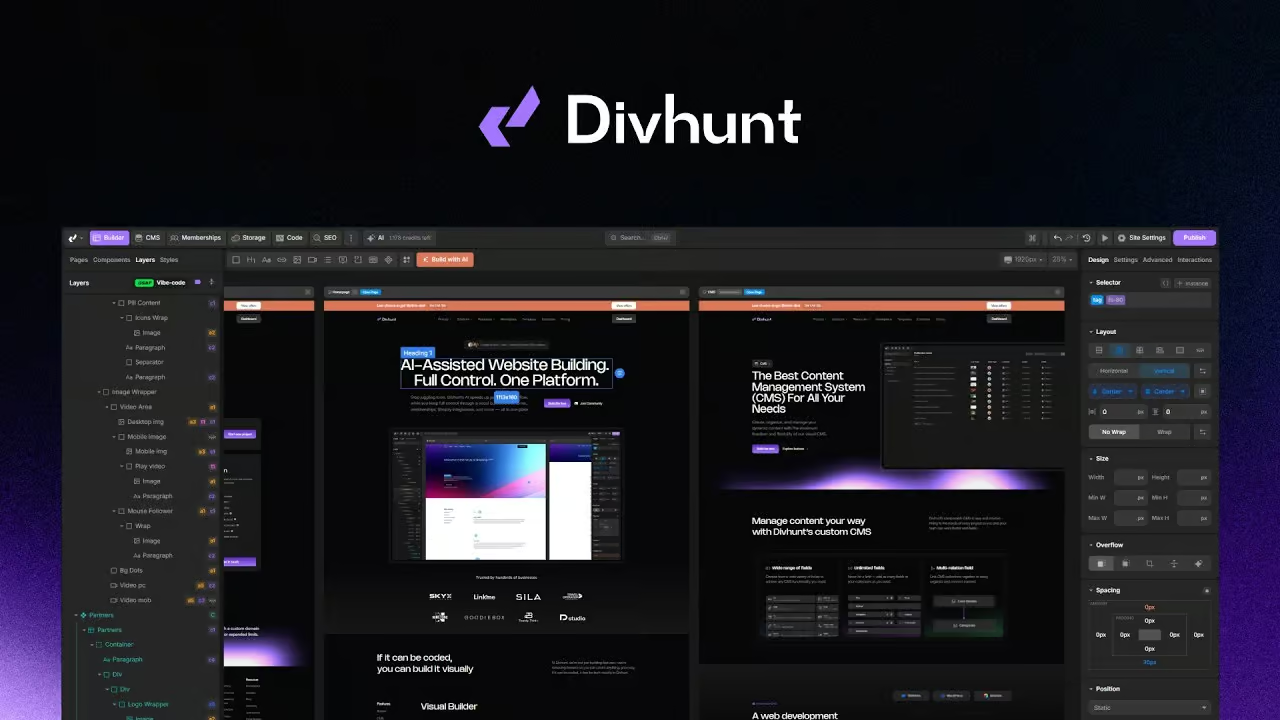

Quick overview of the steps we'll cover
- Using the WordPress documentation, create an endpoint to retrieve the single post from WordPress based on the dynamic slug in the page URL.
- Connect this endpoint to Divhunt via the REST API.
- Create dynamic property slug and use it in endpoint.
- Link the data from the API to the page inside the builder.
Retrieve all posts from WordPress (Video tutorial)
In the video tutorial below, you will learn how to retrieve all posts from WordPress and display them on your Divhunt website. The video demonstrates how to connect all blog posts and a single post page. This specific lesson is shown in minute 10 of the video below.
Understanding WordPress endpoints
With WordPress, you can easily retrieve only one post via slug. For more information, consult the extensive WordPress documentation.
https://yourwebsite.com/wp-json/wp/v2/posts?slug=POST_SLUGConnecting WordPress API endpoint with Divhunt
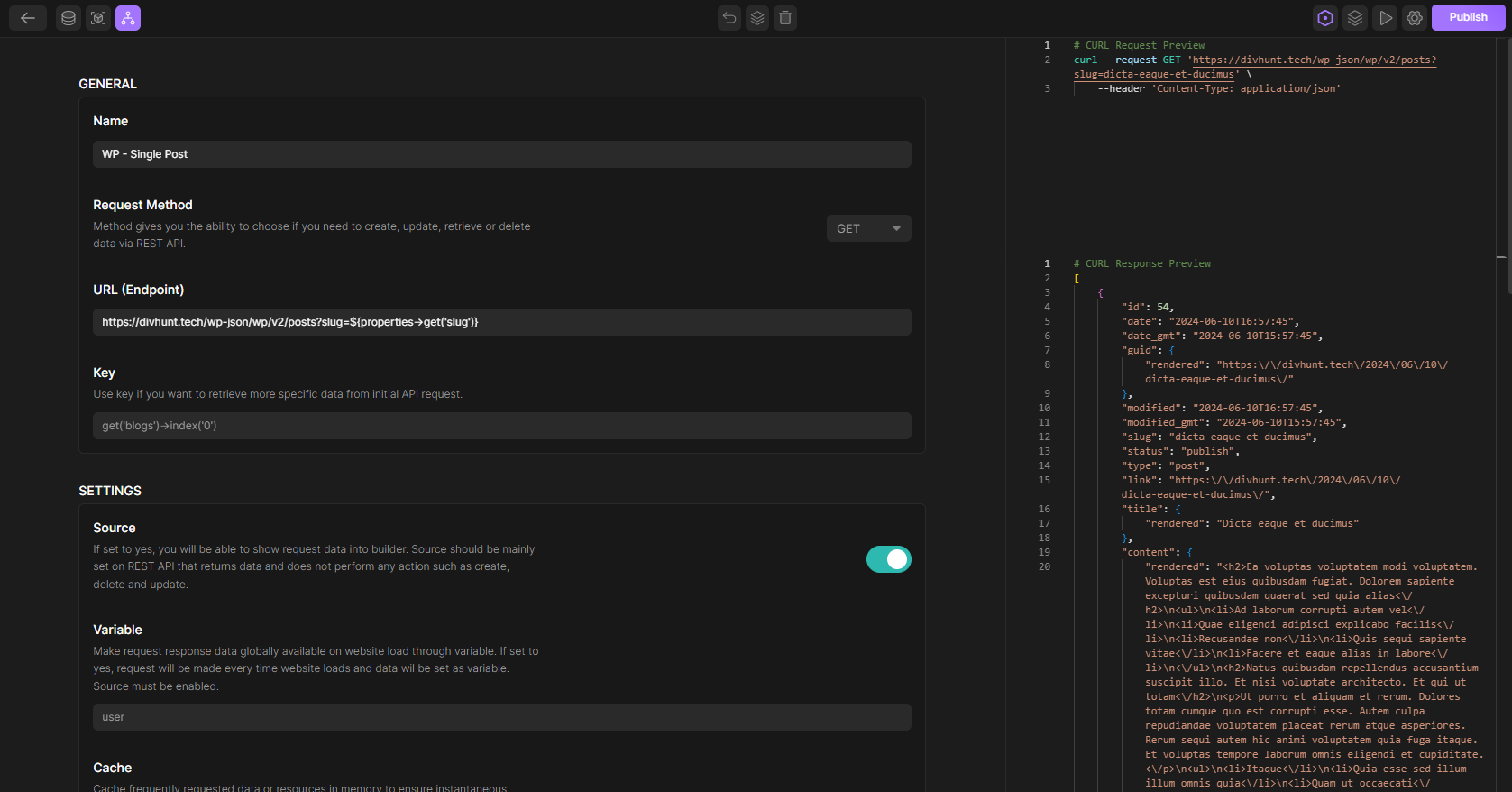
- Create a new GET request in the REST API application. For this example, we have named it "WP - Single Post."
- In the URL (Endpoint) field, paste the URL from above. For the slug, add the variable {$properties->get('slug')}, as shown in the screenshot(1) below.
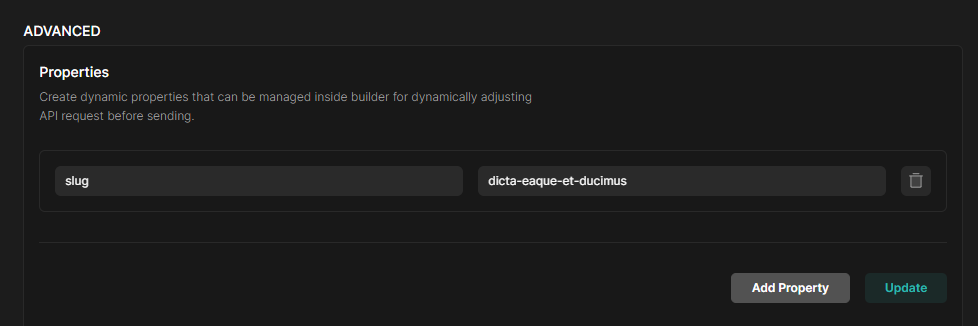
- Scroll all the way down to the advanced settings and create a property 'slug'. For the value, you can put any slug of the items in your WordPress. This is your default value and slug you enter here will be later used as a default item while working in builder. Users will not see this. (screenshot 2)
- Click the execute icon in the middle of the top bar to verify everything is working correctly. If you see a JSON data preview on the right (as shown in the screenshot 1), everything is correct, and we are ready to use this data in the builder.
Display data from a single WordPress page in Divhunt
Apply source & dynamic URL
Now that we have connected our REST API, our builder has access to that data.
- Open a single page that you would like to use for post.
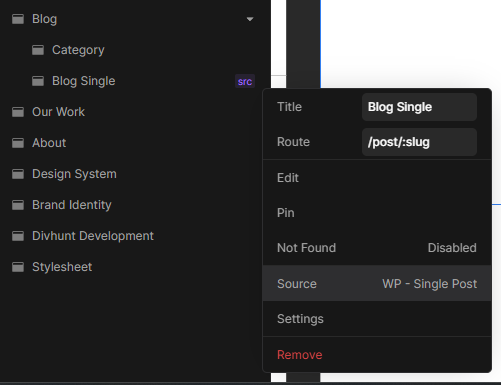
- Right click on page from left sidebar and click 'Source'.
- Apply appropriate source, in this example: 'WP - Single Post'.
Set dynamic URL
Right-click on the page from the left sidebar and set the route with the dynamic slug property that we previously used in REST API settings. This route can be something like: '/post/:slug'.
When a user visits a page with a URL like youwebsite.com/post/awesome-post, Divhunt will see that "awesome-post" is the dynamic part of the URL. Divhunt will use this slug to fetch the correct data from the REST API we set up earlier.
The REST API will recognize the slug based on the property we previously created and will return the specific data for "awesome-post". This allows you to display the correct information for each blog post on its own page.
Show data
Now that we have completed all the previous steps, all data for this specific page is being stored in the variable Page > Data. You can now connect all the text, images, attributes, conditional visibility, and more using the variables system with the data you are fetching. Learn more about how variables work here.