










Table of Contents
Auto-generate Table of Contents with clickable anchors.
Watch the video tutorial on YouTube
Make your articles user-friendly! This plugin simplifies navigation by automatically creating a table of contents from your rich-text content. It identifies headings (2, 3, 4) and generates clickable links, making it a breeze for readers to jump to the sections they want to explore.
Instructions
Installation
- Navigate to the settings of your project. Go to 'Browse Plugins'.
- Find and install plugin named 'Table of Contents'.
Setup
- Ensure that you have a rich-text element on your page to create the Table of Contents (TOC) from. Also, make sure to give it a unique label for easier identification later, such as 'Blog Rich Text'.
- Create an empty div where you want to show your TOC links.
- Select div that you just created and navigate to 'Settings' panel.
- Set transform to 'Table of Contents'.
Adjust settings
- Content: Select the rich-text element that you previously named uniquely. For example, in the above instance, it's 'Blog Rich Text'.
- Smart Submenu: This feature ensures that submenu items are only visible when you are viewing their corresponding main item. It's a dynamic way to keep your menu organized and focused, displaying relevant submenu options based on the main item currently being accessed.
- Style: Select one of the pre-defined styles, doing advanced custom styling is possible only through custom code.
Don't add a specific title to the TOC
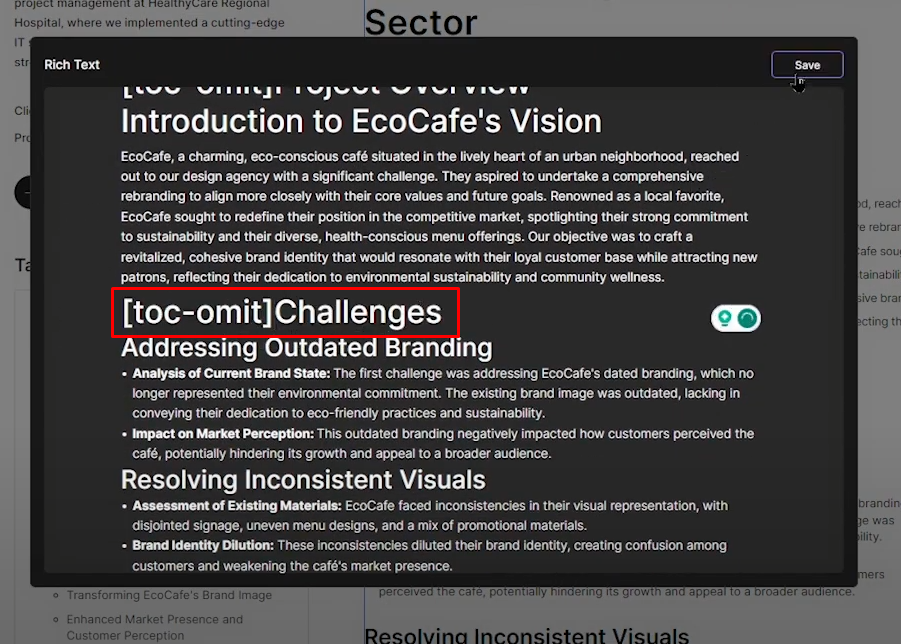
- In your rich text, whether you are working in a CMS or directly on a page, if you have a title that you don't want to be included in the TOC, simply add '[toc-omit]' in front of it. This will exclude the title from the TOC, and '[toc-omit]' will not be shown to users.
Custom Styling (for developers)
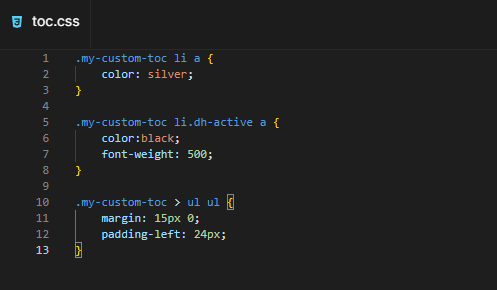
- Set the style in the transform settings to 'none'. This ensures that no pre-defined styles are loaded into the Table of Contents, which could potentially conflict with your custom code.
- Apply some unique class to your TOC, which you are going to use for your custom CSS. For example add class 'my-custom-toc'.
- Create CSS file in files. E.g. TOC.css
- Use inspect element on live website in order to understand how to target specific tags inside of your TOC.
Countdown
Create a Countdown Timer that counts down in days, hours, minutes, and seconds without the code.
Divhunt
Parallax Image - Scroll Effect
Simple way to make your images entertaining, works great in combination with Lenis Smooth Scroll.
Divhunt
Accordions
Effortlessly create an FAQs section or similar using accordions transform. A few simple clicks, and you're all set.
Divhunt
Hubspot Forms
Collect and forward all submission data directly to Hubspot - without the code.
Divhunt