










Simple Filtering
Convenient way to filter projects, blogs, or related content based on categories and similar.
Watch the video tutorial on YouTube
This neat plugin makes sorting content a breeze, ideal for galleries or articles. It includes a handy 'Load More' feature, keeping your site clean and your visitors engaged.
Instructions
Installing
- In your Divhunt project settings, go to 'Browse Plugins'.
- Search for and install the 'Simple Filtering' plugin.
Setting up the structure
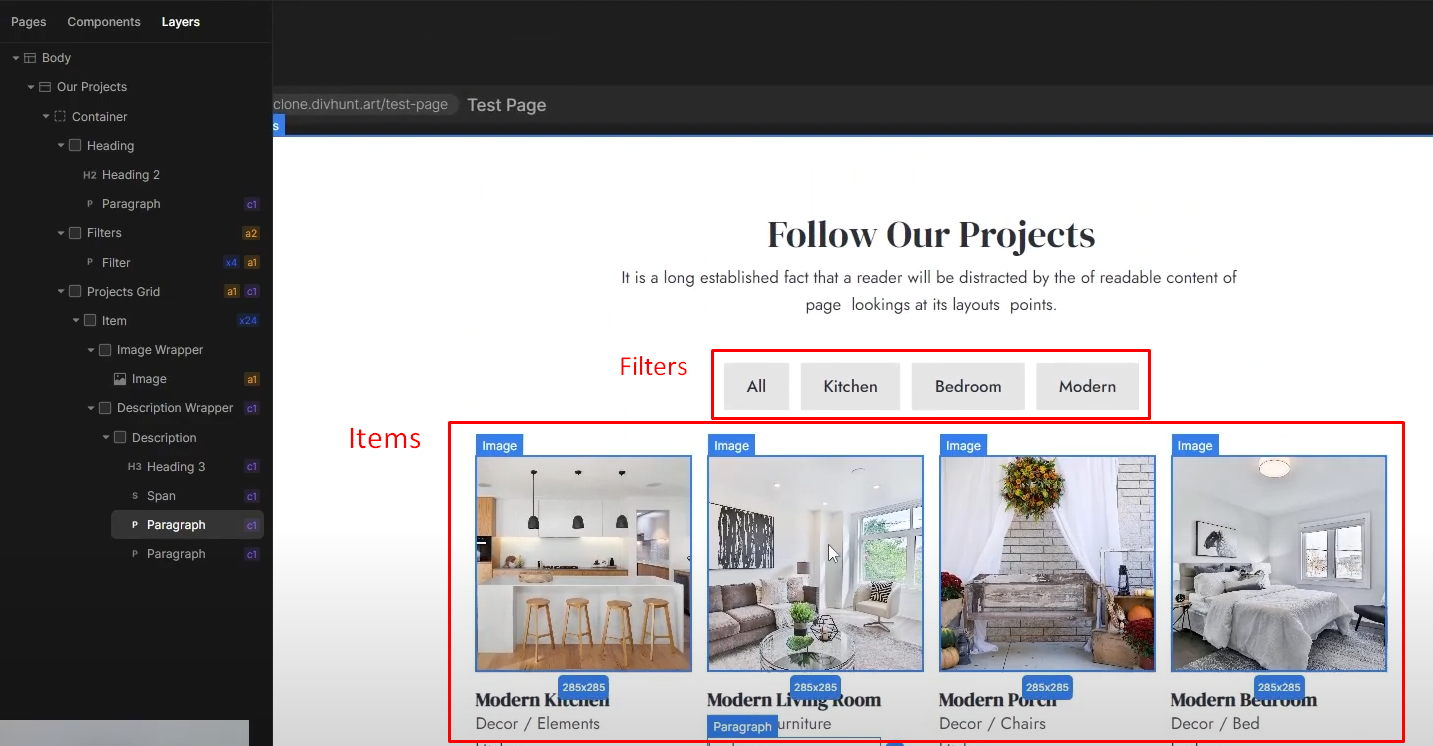
- Make a div for your filters and buttons for each filter inside.
- Create a grid div to hold these items, and assign it an ID (e.g., 'projects').
- Inside of that div, create elements that you want to filter, such as blog, cards, images, etc.
Configuring filters
- Select the filters div, go to Settings panel and set the transform to 'Simple Filter'.
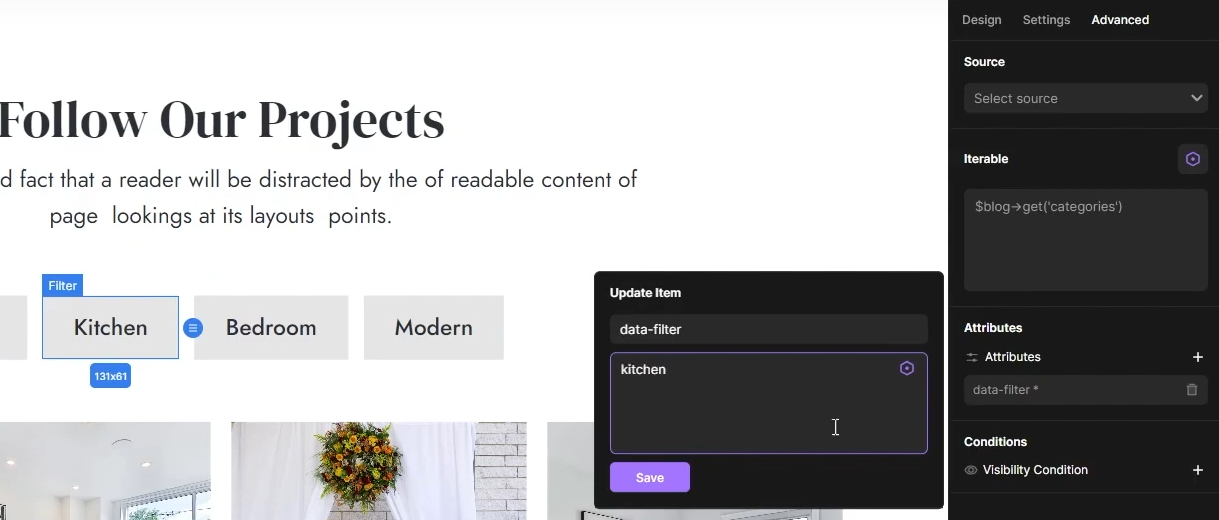
- Each filter button needs a 'data-filter' attribute. For instance, set 'data-filter="kitchen"' for kitchen items. Use 'data-filter="*"' for the button that shows all items.
Adding filter property to items
- Add a paragraph or span within each item in your grid, containing the category name (e.g., 'kitchen', 'bedroom'). You can keep this element hidden on your live website.
- Assign the class 'data-filter' to these paragraphs or spans as well.
Customizing and Activating Filters:
- Customize the appearance of active filters (like changing the color when selected).
- Optionally, set a default active filter (e.g., 'kitchen') so that when users first visit the page, only items from that category are shown.
Lazy Load / Load More Option
In case that you don't want all the items loaded initially:
- Create a load more button below the items and give it a unique label in order to find it easier in next step.
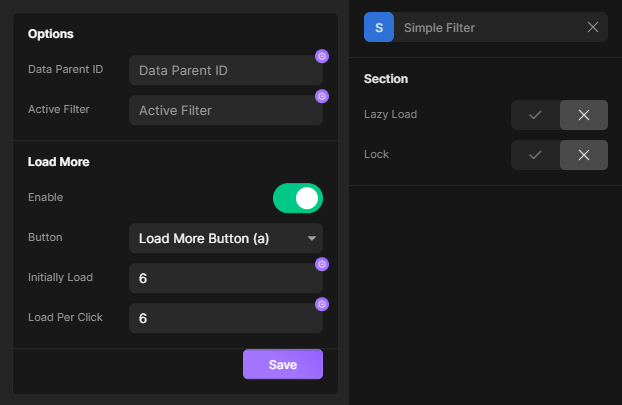
- Open Simple Filter transform settings, for the button select the button you just created in step above.
- Set desired initially load & load per click values.
Text Animation
Enhance your website by adding stunning text animations. Animate text word by word, or line by line. And many more customizations.
Divhunt
Count Up
Bring numbers to life! Turning static figures into captivating, animated counters. Ideal for displaying statistics or achievements.
Divhunt
Simple Search
Simple way to add search and highlight features to your website, making it easier for visitors to find what they need.
Divhunt
PaginationJS
Easily paginate your website's content, perfect for both CMS-based and static elements.
Divhunt