










Popup
Create tooltips, dropdowns, mega-menus and more.
Watch the video tutorial on YouTube
Effortlessly engage your audience with Divhunt's Popup plugin, which triggers pop-ups through clicks, hovers, or as users scroll. This transform lets you display newsletters, special offers, or tailored messages, thus enhancing user experience. With just two clicks, create simple textual tooltips, or craft your popups as components to be easily called on any page. This method offers an organized way to manage your popups, eliminating the need to 'hide' them until revealed. Ideal for developers and designers, this plugin makes editing content within a popup incredibly easy, a feature your clients will appreciate.
Instructions
Installation
- Go to your Divhunt project settings. And navigate to 'Browse Plugins'.
- Find and install the 'Popup' plugin.
Apply transform
- Select the element (like a button) in the Builder.
- Go to 'Settings' and choose 'Transform', then select 'Popup'.
Adjust settings
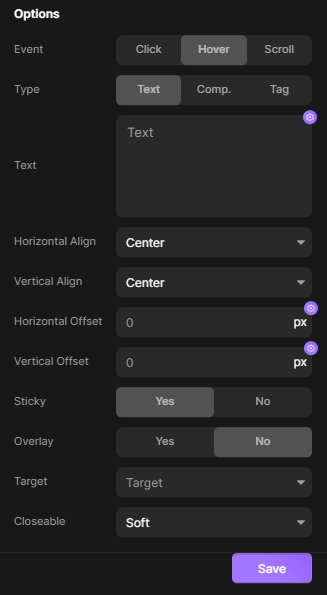
- In the popup settings, we have variety of options available.
- Event
- Click: Opens the popup when the element is clicked.
- Hover: Opens the popup when the mouse hovers over the element.
- Scroll: The popup appears when the page is scrolled to a certain point.
- Type
- Text: Allows you to enter text that will be displayed in the popup. (good for tooltips)
- Component: Lets you select a pre-made component to display in the popup.
- Tag: Lets you select any element from the same page to display in the popup.
- Target: Specify which element the popup is related to, affecting where the popup appears on the screen.
- Horizontal/Vertical Align: Specify position of the popup relative to the target.
- Horizontal/Vertical Offset: Make smaller positional adjustments, relative to current position of popup defined above.
- Sticky: If user starts scrolling while popup is opened, popup will follow scroll.
- Overlay: Adds dark background layer between popup and website. Overlay transparency is adjustable.
- Closeable
- None: Popup can only be closed manually. (custom close button)
- Soft: Any outside click excluding other popups will close this popup. In case you have three nested popups opened, you will need to close them one by one.
- Hard: Any outside click will close this popup. In case you have three nested popups opened, one outside click will close all of them.
Custom close button
- Create a button and position it wherever you like.
- Go to advanced tab and set attribute modal-close with value true.
Baffle - Text Animations
Briefly scrambles letters to make them look like random symbols before revealing the actual word.
Divhunt
Vimeo Embed
Easily embed a Vimeo video and customize it with a user-friendly interface, including settings like aspect ratio, autoplay, mute, and more in just a few seconds.
Divhunt
Image Hover Effect
Create a stunning transition between two images when the user hovers over a specific tag on the page.
Divhunt
Showdown - Markdown to HTML
If your data is coming as markdown, easily show it in a proper HTML structure.
Divhunt