








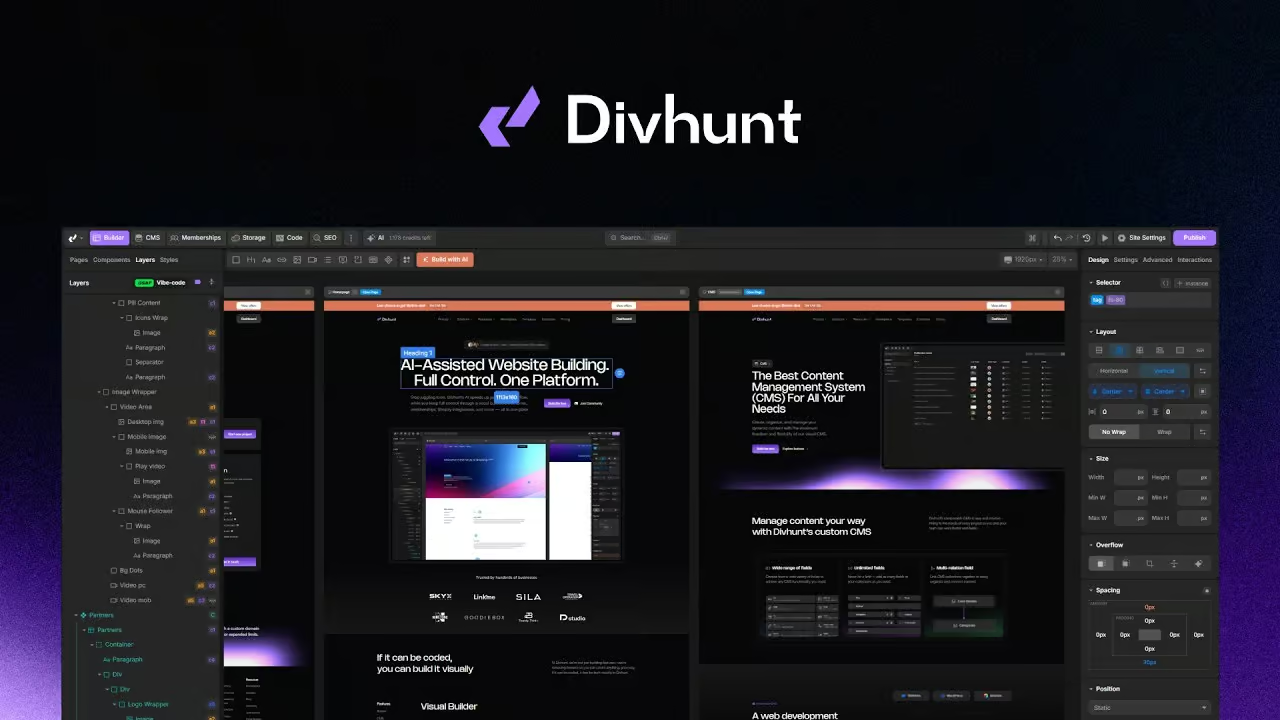

Layers
A tree view of every element on the open page or component, for selecting, reordering and organizing.
The Layers panel shows the element structure of the page or component you are editing. Click a layer to select the element, drag layers to reorder or nest them, and double click on the canvas side to move to it. From the toolbar you can collapse all layers or toggle extra details. Right click a layer for element options such as copy, paste, duplicate, wrap, replace tag and delete.
How it works
- Open with SPACE + 3 (Left: Open Layers) or from the left sidebar; the sidebar group is Pages, Components, Layers, Colors.
- Click selects the element and starts editing; double click moves the canvas to the element.
- Drag and drop to reorder and nest (respects each tag's allowed children).
- 'Collapse all layers' button.
- 'Toggle details' button hides or shows symbol/detail markers; the choice is saved per user.
- Right click options include Label, Copy (Style, Text, Classes, Attributes, Object as JSON, Identifier), Paste (Style, Text, Classes, Attributes), Clear, Duplicate (CTRL + D), Wrap in Div (CTRL + SHIFT + D) or Link Block (CTRL + SHIFT + A), Replace Tag, Convert to Component, Remove.
- A GSAP 'Vibe-code' (Motion Agent) button appears in the Layers header when something is on the canvas.
- Shows 'No selected element.' when no page or component is open.
When to use it
- Find a deeply nested element quickly
- Move a block above another section
- Wrap several elements in a link block
Limitations
- Lock, symbols and component conversion are Components features documented separately
Availability
- Works in Designer.
- Included in every plan.
How to use it.
- Open Layers with SPACE + 3
- Click a layer to select it
- Drag it to a new position
- Right click for more options
Questions.
How do I open Layers?

Can I drag to reorder?
Related features.
Layers naming
Give any element a custom label in Layers, or name layers automatically from their first class.
Elements copy and paste
Copy elements, styles, text, classes or attributes and paste them elsewhere, or copy an element as JSON.
Keyboard shortcuts
Builder shortcuts for search, preview, undo, copy, paste, duplicate, states, panels and value nudging, with an in app list.
Browse other features

Designer
Bring your ideas to life with our visual website builder. Drag and drop with ease, or dive into coding when needed.
→
AI Studio
Describe it and AI builds it. Every change lands in the same project you can open in the Designer.
→
MCP
Connect Claude Code, Cursor or any MCP client and build whole sites with your own agent.
→
CMS
Create, organize, and manage your dynamic content with the maximum freedom and flexibility of our visual CMS.
→
SEO
Divhunt delivers ultra-fast & structured sites that are good for ranking by default, while offering complete control for customization.
→
REST API
Easily link to any REST API endpoint with instant preview and expand your site’s functionality smoother than ever before.
→
Plugins
Divhunt offers an open platform for creating plugins to upgrade features, add new capabilities, and simplify building better sites.
→
Localization
Localize everything from static pages and CMS content to URLs and metadata, in up to 15 languages with no add-on.
→
Interactions
Visually create animations and interactions with a simple, intuitive timeline. Build smooth, engaging experiences without code.
→
Custom Files
Manage JS and CSS files with a structure developers love, combining folders and clean organization.
→
Memberships
Create plans, decide who sees what and connect it all to your CMS. Build courses, communities or client portals.
→