








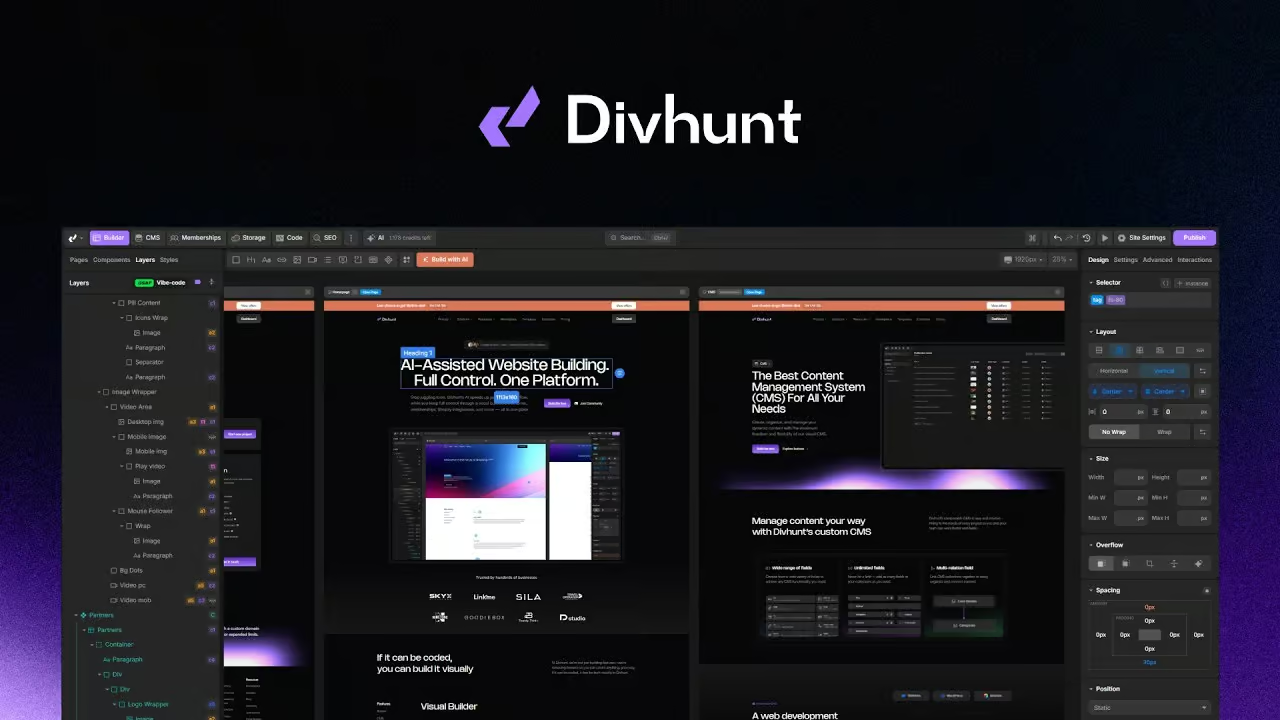

Component instances
Place a component as an instance; each instance follows the definition and can override its own text and attributes.
An instance is an element on a page (or inside another component) that renders a component. It keeps the link to the definition, so design changes made to the component appear in every instance. In the editor you copy a component with Get component and then use Set on any element to turn it into an instance; Unset removes the link. The Content panel shows an Instance Yes/No switch for instances of components without variables. Instances let one design live in many places while each place keeps its own words or links.
How it works
- On the canvas it carries the attribute component=<id>.
- Get component (component context menu) stores the component in a temporary slot ('Copied.'); the tag context menu then shows Set <component name> and, for an existing instance, Unset.
- Instance switch (Content panel > Component): Yes (default) means content edited inside this placement is stored for this instance; No means the placement shows the definition. Stored in tag properties.instance (put/tags/properties/instance).
- Overrides: text and attributes of inner nodes are stored per instance under a key '<instance id>-<loop>' on the inner node of the definition. Overrides are copied when an instance is cloned.
- Swap: the component an instance renders can be changed; old overrides stay stored and come back if the instance is switched back.
- Layers panel shows the instance's inner tree unless the instance is locked, has variables, or Instance is off; a Toggle symbols button collapses or restores them.
When to use it
- The same button component with a different label on each page
- A testimonial card placed three times with different quotes
Limitations
- Overrides cover text and attributes (per the MCP docs); styling changes go to the definition and apply to every instance.
- Components with variables (widgets) are edited through their content form, not by clicking inner elements.
Availability
- Works in Designer and MCP.
- Included in every plan.
How to use it.
- Right click a component in the Components tab and choose Get component.
- Right click the target element on the canvas and choose Set <component>.
- Edit the instance's text directly on the canvas.
Questions.
How do I detach an instance?

Can an instance have its own text?
Related features.
Reusable components
Turn any group of elements into a named component you can reuse across every page of the site.
Lock
Lock an element or component instance so its inner elements cannot be selected or changed by accident on the canvas.
Widgets (component variables)
Give a component its own fields (text, image, select, color...) so every instance is filled in through a simple form.
Browse other features

Designer
Bring your ideas to life with our visual website builder. Drag and drop with ease, or dive into coding when needed.
→
AI Studio
Describe it and AI builds it. Every change lands in the same project you can open in the Designer.
→
MCP
Connect Claude Code, Cursor or any MCP client and build whole sites with your own agent.
→
CMS
Create, organize, and manage your dynamic content with the maximum freedom and flexibility of our visual CMS.
→
SEO
Divhunt delivers ultra-fast & structured sites that are good for ranking by default, while offering complete control for customization.
→
REST API
Easily link to any REST API endpoint with instant preview and expand your site’s functionality smoother than ever before.
→
Plugins
Divhunt offers an open platform for creating plugins to upgrade features, add new capabilities, and simplify building better sites.
→
Localization
Localize everything from static pages and CMS content to URLs and metadata, in up to 15 languages with no add-on.
→
Interactions
Visually create animations and interactions with a simple, intuitive timeline. Build smooth, engaging experiences without code.
→
Custom Files
Manage JS and CSS files with a structure developers love, combining folders and clean organization.
→
Memberships
Create plans, decide who sees what and connect it all to your CMS. Build courses, communities or client portals.
→