








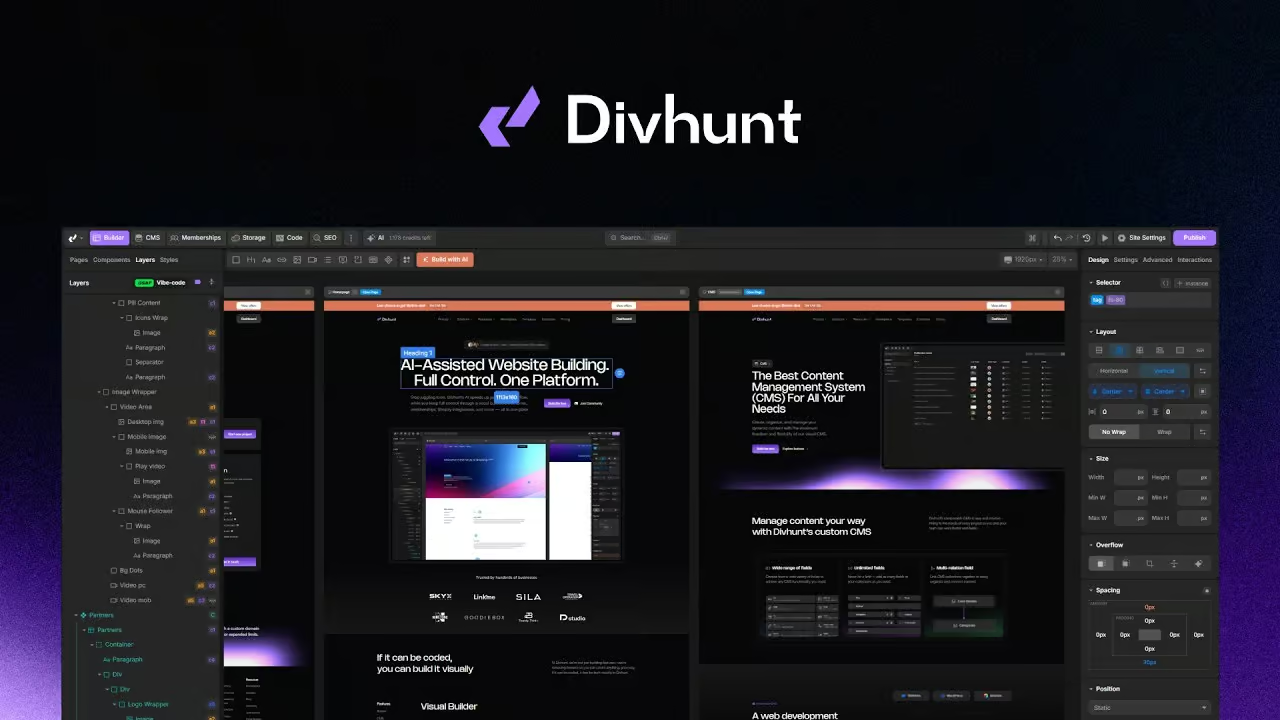

Code files (custom CSS and JS)
Write site-wide CSS and JavaScript files in a built-in code editor, organized in folders, with an AI coding assistant.
The Files tab of the builder holds the site's own code files. CSS files are compiled into the site stylesheet; JavaScript files run on an event you choose, such as page ready. Besides plain scripts you can create reusable functions, classes and modules that other code and dynamic bindings can call.
How it works
- File types: css, js (Default: runs on an event), plugin (runs inside and outside the builder), class, module, function.
- JS event: select from the website events list (default dh.ready); the file runs each time the event fires.
- Plugin files run on load unless the URL has ?plugins=off.
- Functions, classes and modules are registered by name and called with $dh.Fn(name, data), $dh.Class(name, ...args), $dh.Module(name); a 'Files > function' binding function calls a file function from dynamic values.
- Folders: create, rename, delete, clone.
- Editor: Monaco, Save button, Close, file rename and remove from the context menu.
When to use it
- A custom CSS file for animations a class cannot express (@keyframes)
- A JS file that initializes a third-party library on page ready
- A reusable formatting function used in CMS bindings
Limitations
- Files are site-wide; page-specific JS has to check the route itself.
- CSS and JS changes go live at the next publish.
Availability
- Works in Designer and MCP.
- Included in every plan.
- Limits: MCP: code up to 100,000 characters, names up to 70.
How to use it.
- Open the Files tab in the left sidebar.
- Create a CSS or JS file (for JS choose the type and event).
- Save and publish the site.
Questions.
When does my JS run?

Related features.
Custom code (head and body)
Add your own HTML, scripts or styles to the head or body of every page of the site.
Code export
Export the site as static HTML, CSS and JS files and download them as a ZIP.
Plugin creator
Build your own plugins with code files and an AI helper, then submit them to the Divhunt marketplace.
Browse other features

Designer
Bring your ideas to life with our visual website builder. Drag and drop with ease, or dive into coding when needed.
→
AI Studio
Describe it and AI builds it. Every change lands in the same project you can open in the Designer.
→
MCP
Connect Claude Code, Cursor or any MCP client and build whole sites with your own agent.
→
CMS
Create, organize, and manage your dynamic content with the maximum freedom and flexibility of our visual CMS.
→
SEO
Divhunt delivers ultra-fast & structured sites that are good for ranking by default, while offering complete control for customization.
→
REST API
Easily link to any REST API endpoint with instant preview and expand your site’s functionality smoother than ever before.
→
Plugins
Divhunt offers an open platform for creating plugins to upgrade features, add new capabilities, and simplify building better sites.
→
Localization
Localize everything from static pages and CMS content to URLs and metadata, in up to 15 languages with no add-on.
→
Interactions
Visually create animations and interactions with a simple, intuitive timeline. Build smooth, engaging experiences without code.
→
Custom Files
Manage JS and CSS files with a structure developers love, combining folders and clean organization.
→
Memberships
Create plans, decide who sees what and connect it all to your CMS. Build courses, communities or client portals.
→