Last chance to get lifetime deal


Auto-generate Table of Contents with clickable anchors.

Overview
Make your articles user-friendly! This plugin simplifies navigation by automatically creating a table of contents from your rich-text content. It identifies headings (2, 3, 4) and generates clickable links, making it a breeze for readers to jump to the sections they want to explore.
Instructions
Installation
- Navigate to the settings of your project. Go to 'Browse Plugins'.
- Find and install plugin named 'Table of Contents'.
Setup
- Ensure that you have a rich-text element on your page to create the Table of Contents (TOC) from. Also, make sure to give it a unique label for easier identification later, such as 'Blog Rich Text'.
- Create an empty div where you want to show your TOC links.
- Select div that you just created and navigate to 'Settings' panel.
- Set transform to 'Table of Contents'.
Adjust settings
- Content: Select the rich-text element that you previously named uniquely. For example, in the above instance, it's 'Blog Rich Text'.
- Smart Submenu: This feature ensures that submenu items are only visible when you are viewing their corresponding main item. It's a dynamic way to keep your menu organized and focused, displaying relevant submenu options based on the main item currently being accessed.
- Style: Select one of the pre-defined styles, doing advanced custom styling is possible only through custom code.
Dont add specific title to TOC table
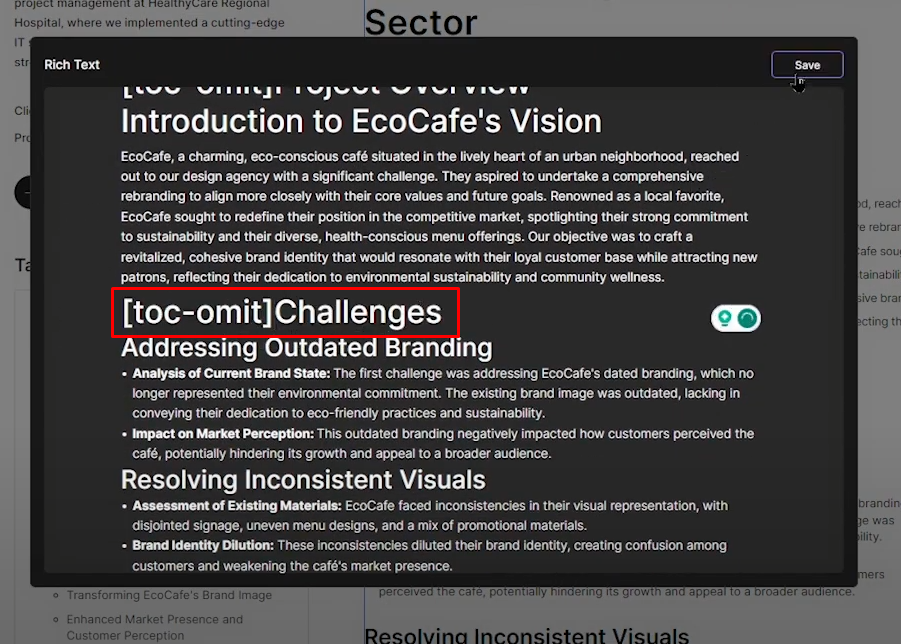
- In your rich text, whether you are working in a CMS or directly on a page, if you have a title that you don't want to be included in the TOC, simply add '[toc-omit]' in front of it. This will exclude the title from the TOC, and '[toc-omit]' will not be shown to users.
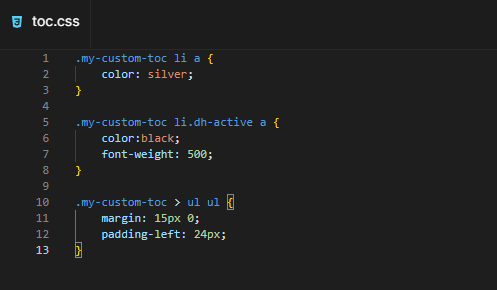
Custom Styling (for developers)
- Set the style in the transform settings to 'none'. This ensures that no pre-defined styles are loaded into the Table of Contents, which could potentially conflict with your custom code.
- Apply some unique class to your TOC, which you are going to use for your custom CSS. For example add class 'my-custom-toc'.
- Create CSS file in files. E.g. TOC.css
- Use inspect element on live website in order to understand how to target specific tags inside of your TOC.
More plugins
Browse all plugins
Free

Typed.js
Typed.js is a library that types. Enter in any string, and watch it type at the speed you've set, backspace what it's typed, and begin a new sentence for however many strings you've set.
Divhunt
Free

PaginationJS
Easily paginate your website's content, perfect for both CMS-based and static elements.
Divhunt
Free

Scroll to top
Easily add a smooth scroll-to-top button for quick navigation.
Divhunt
Free

Vimeo Embed
Easily embed a Vimeo video and customize it with a user-friendly interface, including settings like aspect ratio, autoplay, mute, and more in just a few seconds.
Divhunt
Create and sell your templates and plugins

Divhunt - Build websites. Faster. Better. Visually.


©2026 Divhunt GmbH. All Rights Reserved.

Built in Divhunt
We use cookies.
By clicking “Accept All”, you agree to the storing of cookies on your device to enhance site navigation, analyze site usage, and assist in our marketing efforts. View ourCookie Policyfor more information.
Optahunt
Preferences
Manage your cookie preferences.
Essentials
Always Active
These are required for the website to work, like remembering your privacy settings, keeping you logged in, or enabling secure payments.
Performance
These help us understand how people use our site (like which pages are most popular) so we can make improvements.
Personalization
These allow the site to remember your preferences (such as language or region) and provide enhanced features.
Advertising & Targeting
These are used to deliver ads more relevant to you, limit how often you see them, and measure campaign performance.
Save my preferences
You can always change these settings later via ourCookie Policy pagepage, or via the cookie widget placed at the bottom left of the page.